Apple iPhone 16 128 GB: 5G Mobile Phone with Camera Control, A18 Chip and a Big Boost in Battery Life. Works with AirPods; Black
₹76,999.00 (as of October 27, 2026 17:07 GMT +05:30 - More infoProduct prices and availability are accurate as of the date/time indicated and are subject to change. Any price and availability information displayed on [relevant Amazon Site(s), as applicable] at the time of purchase will apply to the purchase of this product.)
Portronics Bridge Y USB 3.0 to Type C OTG Adaptor, 10Gbps High Speed Data Transfer, Thunderbolt to USB Adapter, Compatible for All Type C Devices, Smartphone, Laptops, Tablets, Chargers, MacBook
₹99.00 (as of October 27, 2026 17:07 GMT +05:30 - More infoProduct prices and availability are accurate as of the date/time indicated and are subject to change. Any price and availability information displayed on [relevant Amazon Site(s), as applicable] at the time of purchase will apply to the purchase of this product.)
Watch the original video: Account Storage is Full – GMAIL | How to clean Gmail storage
Disclosure: This post may contain affiliate links. If you buy through them, Informative Media may earn a small commission at no extra cost to you.
Quick Summary
- Clearing old emails might not be enough to free up space.
- This guide offers a three-step solution to reclaim your Gmail storage.
- Learn to identify and remove large files taking up space.
- Ensure you can receive new emails by managing your storage effectively.
Amazon Finds
Recommended Products
Getting that dreaded “Account Storage is Full” message on Gmail can be frustrating, especially when you can’t receive important emails. You might think deleting a few old messages will do the trick, but often, that’s just scratching the surface. This issue usually stems from a combination of your Gmail, Google Drive, and Google Photos storage.
If you’re in this situation, don’t worry! We’ve got a straightforward, three-step process outlined in this Informative Media YouTube video that can help you reclaim your storage space and get your email flowing again.
Why Simply Deleting Emails Isn’t Enough
The total storage limit for your Google account often includes more than just your emails. Large attachments, old backups, and even photos can eat up a surprising amount of space. The key is to identify what’s taking up the most room and tackle that directly.
The Three-Step Solution to Clean Gmail Storage
- Identify Large Files: Start by checking what’s consuming your storage. Google provides tools to help you see which emails have the largest attachments. You can often sort your inbox by size to find these offenders quickly.
- Clear Out Unnecessary Data: Once you’ve identified large or unwanted files (and the emails they’re attached to), delete them. Don’t forget to empty your trash and spam folders, as these also count towards your storage limit.
- Manage Google Drive and Photos: If your Gmail is still full, look at your Google Drive and Google Photos. Remove duplicate files, old documents, or photos you no longer need. You might be surprised how much space these can free up.
Pro Tips for Efficient Storage Management
- Use Search Operators: Gmail’s search bar is powerful. Try searching for `has:attachment larger:10M` to find emails with attachments over 10MB.
- Regular Check-ups: Make it a habit to check your storage usage once a month. This prevents it from becoming a major issue again.
- Backup Strategically: Consider backing up important large files to an external drive or a dedicated cloud service if you don’t need them readily accessible in your primary Google account. A good external hard drive like the WD 1TB My Passport can be a lifesaver for large backups.
Common Mistakes to Avoid
- Forgetting to Empty Trash: Deleting items doesn’t free up space until you empty the trash folder.
- Ignoring Google Drive/Photos: These services are often the biggest culprits for full storage, so don’t neglect them.
- Not Checking Spam Folders: Spam emails can also accumulate and take up space.
Frequently Asked Questions (FAQ)
- Q1: Will deleting emails really free up space?
- A1: Yes, but only if those emails are taking up significant space (e.g., large attachments) and you empty your trash afterward. Often, the issue is with Google Drive or Photos.
- Q2: How do I see what’s taking up my Google account storage?
- A2: You can visit your Google storage management page (usually linked from your account settings) or use specific search operators within Gmail to find large attachments.
- Q3: What happens if I don’t clean my Gmail storage?
- A3: You won’t be able to send or receive new emails, and other Google services linked to your account might also be affected.
Keeping your digital space tidy is just as important as your physical one. By following these steps, you can ensure your Gmail is always ready to go. For more handy tips on managing your digital life, check out our guides on using WhatsApp on your computer or downloading Instagram Stories.
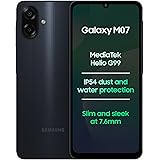
Samsung Galaxy M07 Mobile (Black, 4GB RAM, 64GB Storage) | MediaTek Helio G99 | AnTuTu 624K | IP54| 50MP Camera | 7.6mm Slim | 5000mAh Battery | 25W Fast Charging | 6 Gen OS Upgrades | Without Charger
₹11,999.00 (as of October 27, 2026 17:07 GMT +05:30 - More infoProduct prices and availability are accurate as of the date/time indicated and are subject to change. Any price and availability information displayed on [relevant Amazon Site(s), as applicable] at the time of purchase will apply to the purchase of this product.)