Portronics Adapto 12 2.4A 12W Fast Wall Charger for iPhone 11/Xs/XS Max/XR/X/8/7/6/Plus, iPad Pro/Air 2/Mini 3/Mini 4, Samsung S4/S5, and More(White)
₹129.00 (as of October 27, 2026 17:07 GMT +05:30 - More infoProduct prices and availability are accurate as of the date/time indicated and are subject to change. Any price and availability information displayed on [relevant Amazon Site(s), as applicable] at the time of purchase will apply to the purchase of this product.)
Samsung Galaxy M07 Mobile (Black, 4GB RAM, 64GB Storage) | MediaTek Helio G99 | AnTuTu 624K | IP54| 50MP Camera | 7.6mm Slim | 5000mAh Battery | 25W Fast Charging | 6 Gen OS Upgrades | Without Charger
₹11,999.00 (as of October 27, 2026 17:07 GMT +05:30 - More infoProduct prices and availability are accurate as of the date/time indicated and are subject to change. Any price and availability information displayed on [relevant Amazon Site(s), as applicable] at the time of purchase will apply to the purchase of this product.)
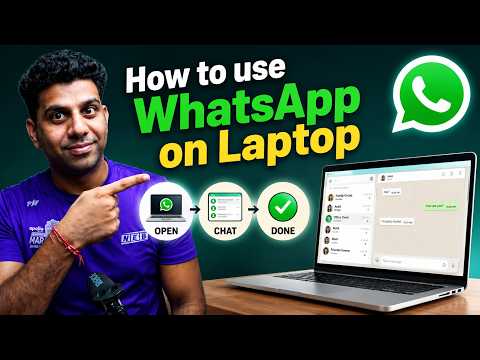
Watch the original video: How to use Whatsapp on Computer/laptop | Whatsapp ko Computer par kaise use kare
Disclosure: This post may contain affiliate links. If you buy through them, Informative Media may earn a small commission at no extra cost to you.
Quick Summary
- Access WhatsApp on your PC via WhatsApp Web or the Desktop app.
- Easily scan the QR code to link your phone.
- Send photos, videos, and documents from your computer.
- Learn how to manage multiple devices and common issues.
Amazon Finds
Recommended Products
How to Use WhatsApp on Your Computer or Laptop
Many of us spend a good chunk of our day on our computers, but juggling messages between your phone and PC can be a hassle. If you’ve ever wished you could use WhatsApp directly from your laptop or desktop, you’re in luck! This comprehensive guide, inspired by the helpful tutorial How to use Whatsapp on Computer/laptop | Whatsapp ko Computer par kaise use kare, breaks down exactly how to get WhatsApp running on your computer.
Whether you’re a beginner or just looking for a refresher, we’ll cover the simplest ways to connect your WhatsApp to your computer, making communication seamless.
Why Use WhatsApp on a Computer?
It’s simple: convenience. Typing long messages, sharing files directly from your hard drive, and multitasking become so much easier when WhatsApp is right there on your larger screen. Plus, with the new multiple device feature, you can stay connected even if your phone isn’t nearby.
Method 1: WhatsApp Web – Quick and Easy
WhatsApp Web is the browser-based version. It requires no installation on your computer and works across Windows and Mac.
Steps to Use WhatsApp Web:
- Open Your Browser: On your computer, open your preferred web browser (Chrome, Firefox, Edge, Safari, etc.).
- Go to WhatsApp Web: Navigate to web.whatsapp.com.
- Scan the QR Code: You’ll see a QR code on your computer screen. Now, grab your smartphone:
- On Android: Open WhatsApp, tap the three dots (⋮) in the top right, then select ‘Linked devices’.
- On iPhone: Open WhatsApp, go to ‘Settings’ (bottom right), then tap ‘Linked Devices’.
- Link the Device: Tap ‘Link a device’ and point your phone’s camera at the QR code displayed on your computer. Your WhatsApp will automatically load in the browser.
Method 2: WhatsApp Desktop App – For More Features
The WhatsApp Desktop app is a standalone application you can download and install on your Windows PC or Mac. It offers a more integrated experience.
Steps to Install WhatsApp Desktop:
- Download the App: Visit the official WhatsApp download page (whatsapp.com/download) or the Microsoft Store/Mac App Store.
- Install: Run the downloaded installer file and follow the on-screen prompts.
- Link Your Account: Once installed, open the app. You’ll see a QR code similar to WhatsApp Web. Follow step 3 and 4 from the WhatsApp Web instructions above to scan the QR code with your phone.
Sending Files from Your Computer
Both WhatsApp Web and the Desktop app make sending files a breeze. Simply click the paperclip icon in the chat window to select photos, videos, documents, or other files stored on your computer. It’s incredibly handy for sharing work-related documents or large media files.
The Multiple Devices Feature
WhatsApp’s latest update allows you to use WhatsApp on up to four linked devices simultaneously, even if your phone is offline. Once you link a device, it can be used independently. You’ll still need to link it initially using your phone and the QR code.
Common Issues and Solutions
- QR Code Not Scanning: Ensure your phone’s camera is clean and you have a stable internet connection on both devices. Try refreshing the WhatsApp Web/Desktop page.
- Messages Not Syncing: Check your internet connection. Sometimes, restarting the app or browser can resolve syncing issues. Ensure your WhatsApp app on the phone is updated.
- Getting Logged Out: Periodically, WhatsApp may ask you to re-link your device for security. Just rescan the QR code.
Pro Tips for Computer WhatsApp Users
- Keyboard Shortcuts: Learn shortcuts like Ctrl+N (or Cmd+N) for a new chat, Ctrl+Shift+N (or Cmd+Shift+N) for a new group, and Ctrl+F (or Cmd+F) to search messages.
- Notifications: Customize notification settings in the app or browser to stay updated without constantly checking.
- Auto-startup: The Desktop app can be configured to start automatically when your computer boots up.
For more detailed insights and visual guidance, be sure to check out the video tutorial How to use Whatsapp on Computer/laptop | Whatsapp ko Computer par kaise use kare. It covers all these steps clearly.
Using WhatsApp on your computer is a game-changer for productivity and convenience. Give these methods a try and let us know which one works best for you!
Frequently Asked Questions (FAQ)
Can I use WhatsApp on my laptop without my phone?
Yes, with the recent multiple devices feature, you can use WhatsApp on up to four linked devices even if your phone is offline, as long as you’ve linked them previously.
Is WhatsApp Web safe to use?
Yes, WhatsApp Web and the Desktop app use end-to-end encryption, just like the mobile app. However, always ensure you are using the official website or app and log out of shared computers.
How do I send photos from my computer to WhatsApp?
In any chat on WhatsApp Web or the Desktop app, click the paperclip icon and select ‘Photos and Videos’ to choose files from your computer.

OnePlus N6 | 6GB+128GB | Midnight Green | Segment's Biggest 8000mAh Battery | Segment's Fastest 45W Charging | 60-Month Smoothness | Smooth 120Hz Display | 50MP Camera | Military-Grade Durability
₹26,999.00 (as of October 27, 2026 17:07 GMT +05:30 - More infoProduct prices and availability are accurate as of the date/time indicated and are subject to change. Any price and availability information displayed on [relevant Amazon Site(s), as applicable] at the time of purchase will apply to the purchase of this product.)