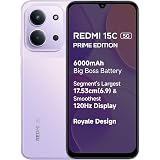
Redmi 15C 5G Prime Edition Dusk Purple 6GB + 128GB | Massive 6000mAh Battery | Segment's Largest 17.53cm Display Up to 120Hz | MediaTek Dimensity 6300 | 33W Fast Charging | 50MP AI Dual Camera
₹17,999.00 (as of October 27, 2026 17:07 GMT +05:30 - More infoProduct prices and availability are accurate as of the date/time indicated and are subject to change. Any price and availability information displayed on [relevant Amazon Site(s), as applicable] at the time of purchase will apply to the purchase of this product.)
Ambrane Unbreakable 60W / 3A Fast Charging 1.5m Braided Micro USB Cable for Smartphones, Tablets, Laptops & Other Micro USB Devices, 480Mbps Data Sync, Quick Charge 3.0 (RCM15, Black)
₹103.00 (as of October 27, 2026 17:07 GMT +05:30 - More infoProduct prices and availability are accurate as of the date/time indicated and are subject to change. Any price and availability information displayed on [relevant Amazon Site(s), as applicable] at the time of purchase will apply to the purchase of this product.)
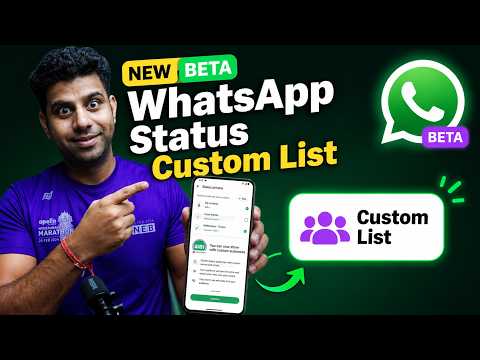
Watch the original video: Whatsapp New Update – Status Audience List
Disclosure: This post may contain affiliate links. If you buy through them, Informative Media may earn a small commission at no extra cost to you.
Quick Summary
- WhatsApp now lets you create custom lists to control who sees your Status.
- Easily exclude specific contacts from viewing your updates.
- This feature enhances privacy without needing to change your contact list.
- Manage your shared moments with greater precision.
Amazon Finds
Recommended Products
Ever felt a little hesitant about sharing a WhatsApp Status because you didn’t want *everyone* to see it? Maybe it’s a funny meme for your close buddies, or a personal update you only want family to catch. Well, WhatsApp has finally heard us! They’ve introduced a much-requested feature: the Custom Audience List for Status. This update gives you granular control over your privacy, letting you handpick who gets to see your daily glimpses.
If you want to dive straight into seeing how it works, check out this helpful video tutorial: Whatsapp New Update – Status Audience List.
This new capability means you no longer have to worry about accidentally sharing sensitive information with the wrong people or constantly updating your privacy settings for each post. Let’s break down what this means for you and how to use it effectively.
What’s the Big Deal with Custom Audience Lists?
Essentially, WhatsApp’s Custom Audience List allows you to create specific groups of contacts who can either see or *not* see your Status updates. It’s a significant step up from the previous ‘My Contacts Except…’ or ‘Only Share With…’ options, as you can save these lists and reuse them, making managing your privacy much quicker and more efficient.
How to Create Your Custom Audience for Status
Setting up your custom lists is straightforward. Here’s how:
- Open WhatsApp and go to Settings.
- Tap on Account, then select Privacy.
- Choose Status.
- Under ‘Status Privacy’, you’ll now see options like ‘My Contacts’, ‘My Contacts Except…’, and ‘Only Share With’. The new functionality comes into play here.
- To create a new custom list, select either ‘My Contacts Except…’ and tap the ‘Select All’ icon at the top right to exclude everyone initially, then select those you *want* to see your status. OR select ‘Only Share With’ and select the specific contacts you want to share with.
- Once you’ve made your selections, tap ‘Done’. WhatsApp will remember this list for future Status updates unless you change it.
Excluding Specific Contacts Made Easy
The ‘My Contacts Except…’ option is perfect for when you want to share with almost everyone but keep a few people out of the loop. Now, with the ability to save these lists, you can easily manage who sees what without re-selecting contacts every single time.
Custom Audience vs. General Privacy Settings
The key difference is reusability and specificity. The old privacy settings required you to manually select contacts each time you wanted to deviate from your default. Custom Audience Lists let you pre-define these groups. For example, you could have a ‘Close Friends’ list and a ‘Family Only’ list, and switch between them effortlessly.
Pro Tips for WhatsApp Status Privacy
- Regularly Review Your Lists: As your contact list changes, make sure your custom audience lists are up-to-date.
- Use Distinct Lists: Create lists for different sharing scenarios (e.g., work colleagues, casual friends, family).
- Don’t Forget Default Settings: While custom lists are powerful, ensure your default privacy setting is appropriate for your general needs. For more on general privacy, check out our guide on How to Turn Off WhatsApp Blue Ticks.
Common Mistakes to Avoid
Over-reliance on one list: Don’t set and forget. Your sharing needs can change daily.
Forgetting to save: Ensure you tap ‘Done’ after making your selections to save your custom audience.
FAQ about WhatsApp Status Audience Lists
- Can I have multiple custom audience lists?
- While you can’t save distinct named lists within WhatsApp itself (like ‘Family’ or ‘Work’), you can effectively create different audiences by choosing ‘Only Share With’ or ‘My Contacts Except…’ and selecting the appropriate contacts each time you post, or by remembering which selection corresponds to which group.
- Does this feature work for Profile Photos and ‘About’ info?
- No, this specific custom audience list feature is currently for Status updates only. Privacy settings for Profile Photos and ‘About’ info are managed separately.
- Will my contacts know if they are excluded?
- No, contacts will not be notified if they are excluded from seeing your Status.
- Is this update available for all users?
- The feature is rolling out gradually to both Android and iPhone users. If you don’t see it yet, ensure your WhatsApp is updated to the latest version.
- Can I change my audience after posting a Status?
- No, you cannot change the audience list for a Status update once it has been posted. You would need to delete the current Status and re-upload it with the updated audience settings.
WhatsApp’s move towards more granular privacy controls is a welcome one. With the Custom Audience List feature, you can share more confidently and keep your updates exactly where you want them. For more tips on staying connected and managing your digital life, keep following Informative Media!
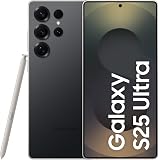
Samsung Galaxy S25 Ultra 5G AI Smartphone (Titanium Black, 12GB RAM, 256GB Storage), 200MP Camera, 5000mAh Ultra Long Battery, QHD+ Dynamic AMOLED 2X, Galaxy AI, Knox Security, S Pen Included
₹96,999.00 (as of October 27, 2026 17:07 GMT +05:30 - More infoProduct prices and availability are accurate as of the date/time indicated and are subject to change. Any price and availability information displayed on [relevant Amazon Site(s), as applicable] at the time of purchase will apply to the purchase of this product.)