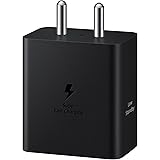

Samsung Original 45W Type-C Travel Adaptor with Cable, Black
₹994.00 (as of October 27, 2026 17:07 GMT +05:30 - More infoProduct prices and availability are accurate as of the date/time indicated and are subject to change. Any price and availability information displayed on [relevant Amazon Site(s), as applicable] at the time of purchase will apply to the purchase of this product.)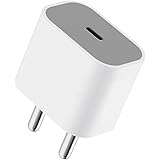
Apple 20W USB-C Power Adapter (for iPhone, iPad & AirPods), White
₹1,699.00 (as of October 27, 2026 17:07 GMT +05:30 - More infoProduct prices and availability are accurate as of the date/time indicated and are subject to change. Any price and availability information displayed on [relevant Amazon Site(s), as applicable] at the time of purchase will apply to the purchase of this product.)
Watch the original video: How To Turn off Whatsapp Blueticks
Disclosure: This post may contain affiliate links. If you buy through them, Informative Media may earn a small commission at no extra cost to you.
Quick Summary
- Learn to disable WhatsApp blue ticks to hide read receipts.
- Follow simple steps for both Android and iPhone.
- Understand the implications: disabling blue ticks means you also won’t see others’ read receipts.
- Discover exceptions to the blue tick rule.
Amazon Finds
Recommended Products
Ever get that slight pressure when you see the blue ticks appear after reading a message, knowing the sender now knows you’ve seen it? Many of us prefer to read messages at our own pace without alerting the sender immediately. If you’re looking for a way to regain that control, you’re in the right place. This guide, inspired by the clear steps shown in this helpful YouTube video, will walk you through exactly how to turn off WhatsApp blue ticks.
The Problem: When Blue Ticks Cause Stress
The blue tick feature on WhatsApp is designed to confirm that a message has been read. While useful for some, for others, it can feel intrusive. It takes away the freedom to read a message and respond when you’re ready, without an immediate expectation. This is where disabling ‘Read Receipts’ comes in handy.
The Quick Solution: Hiding Your Read Status
The good news is that WhatsApp makes it incredibly simple to turn off blue ticks. This feature, often referred to as ‘Read Receipts’, can be toggled off in just a few taps. This means the sender won’t see the blue ticks indicating you’ve read their message.
Step-by-Step Guide to Turning Off Blue Ticks
Whether you’re using an Android device or an iPhone, the process is straightforward:
- Open WhatsApp: Launch the app on your smartphone.
- Go to Settings: On Android, tap the three vertical dots in the top-right corner and select ‘Settings’. On iPhone, tap the ‘Settings’ tab in the bottom-right corner.
- Tap on Privacy: Within the Settings menu, find and select ‘Privacy’.
- Turn off Read Receipts: Locate the ‘Read Receipts’ option and toggle the switch to the off position.
That’s it! Once you’ve completed these steps, your blue ticks will be disabled.
Important Considerations & Exceptions
While disabling read receipts is a powerful privacy tool, it’s crucial to understand its implications:
- Two-Way Street: If you turn off read receipts, you also won’t be able to see the blue ticks for messages others send you. It’s a mutual setting.
- Group Chats: This setting does not apply to group chats. In groups, read receipts will always be visible to everyone, regardless of your privacy settings.
- Voice Messages: Similarly, the blue tick for voice messages will still appear, indicating you’ve played the message.
Common Mistakes to Avoid
Many users mistakenly believe that turning off read receipts hides their ‘last seen’ status or prevents others from seeing if they are online. This is not the case. ‘Last seen’ and ‘online’ status are separate privacy settings that can be managed independently in the same ‘Privacy’ menu. Ensure you’re adjusting the correct setting for your privacy needs.
Frequently Asked Questions (FAQ)
How do I turn off blue ticks on WhatsApp for Android?
Open WhatsApp, go to Settings > Privacy, and then toggle off ‘Read Receipts’.
Can I turn off blue ticks on iPhone?
Yes, the process is the same on iPhone. Navigate to WhatsApp Settings > Privacy and disable ‘Read Receipts’.
If I turn off blue ticks, will others know I read their message?
No, if you disable ‘Read Receipts’, the sender will not see the blue ticks when you read their message. However, you also won’t see their blue ticks.
Does disabling blue ticks affect group chats?
No, read receipts are always visible in group chats, irrespective of your individual privacy settings.
Mastering WhatsApp’s privacy settings is key to a more comfortable messaging experience. If you found this guide helpful, share it with friends who are always wondering “why blue tick is showing?”! For more WhatsApp tips and tricks, check out our articles on securing your personal chats with Chat Lock or explore the latest WhatsApp Beta Updates.
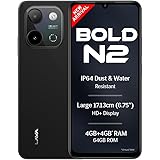
Lava Bold N2 (Indus Black, 4 GB RAM, 64 GB Storage) | 13MP AI Dual Rear Camera | Largest 6.75" HD+ Display | 5000 mAh Battery & 10W Charging | IP64 Water & Dust Proof | Charger & Phone-Case in Box
₹9,349.00 (as of October 27, 2026 17:07 GMT +05:30 - More infoProduct prices and availability are accurate as of the date/time indicated and are subject to change. Any price and availability information displayed on [relevant Amazon Site(s), as applicable] at the time of purchase will apply to the purchase of this product.)