
SanDisk 128GB High Endurance Video MicroSDXC Card with Adapter for Dash Cam and Home Monitoring Surveillance Systems - C10, U3, V30, 4K UHD, Micro SD Card - SDSQQNR-128G-GN6IA
₹3,699.00 (as of October 27, 2026 17:07 GMT +05:30 - More infoProduct prices and availability are accurate as of the date/time indicated and are subject to change. Any price and availability information displayed on [relevant Amazon Site(s), as applicable] at the time of purchase will apply to the purchase of this product.)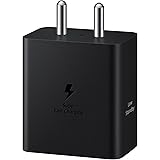
Samsung Galaxy 45W Travel Adaptor (Without Cable), Black
₹839.00 (as of October 27, 2026 17:07 GMT +05:30 - More infoProduct prices and availability are accurate as of the date/time indicated and are subject to change. Any price and availability information displayed on [relevant Amazon Site(s), as applicable] at the time of purchase will apply to the purchase of this product.)
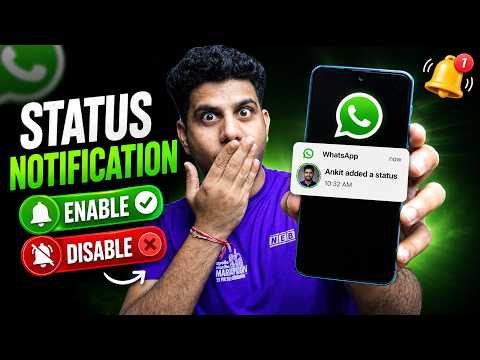
Watch the original video: Whatsapp Status Notification | Disable or Enable it !
Disclosure: This post may contain affiliate links. If you buy through them, Informative Media may earn a small commission at no extra cost to you.
Quick Summary
- Stop annoying WhatsApp status update alerts.
- Learn to mute specific contacts’ statuses.
- Re-enable notifications if you change your mind.
- Works for both Android and iPhone users.
- Understand the latest WhatsApp notification settings.
Amazon Finds
Recommended Products
Are you finding your phone buzzing constantly with WhatsApp status updates? You’re not alone. Many users have recently experienced a shift in how WhatsApp handles status notifications, and it can be overwhelming. If you’re looking to regain control over your alerts, this guide is for you. We’ll walk you through how to disable or re-enable WhatsApp status notifications, ensuring you only get the alerts you actually want.
Check out the video tutorial here: Whatsapp Status Notification | Disable or Enable it !
The Problem: Too Many WhatsApp Status Notifications
The latest WhatsApp updates have introduced more granular control, but for some, it means an influx of notifications for every status update from friends or contacts. Whether it’s constant alerts, notifications from muted contacts, or just general WhatsApp pop-ups, it can disrupt your focus and peace.
Quick Answer: How to Manage Status Notifications
WhatsApp now allows you to manage status notifications directly within the app. You can choose to mute specific contacts’ statuses, disable all status update alerts, or re-enable them if you decide you want to see them again.
Step-by-Step Guide to Disable WhatsApp Status Notifications
This method works for both Android and iPhone users on the latest WhatsApp versions.
On Android:
- Open WhatsApp.
- Go to the Statuses tab.
- Tap on the three dots (menu) in the top right corner.
- Select Status privacy.
- Here you can choose who sees your statuses. For disabling notifications from specific contacts, you’ll need to mute them individually.
On iPhone:
- Open WhatsApp.
- Navigate to the Status tab.
- Tap on Privacy at the top.
- Adjust your privacy settings as needed. Similar to Android, muting is done per contact.
How to Mute Specific Contacts’ Status Updates
If you don’t want to disable all notifications but rather stop alerts from certain people, follow these steps:
- Open WhatsApp and go to the Statuses tab.
- Find the status update from the contact you wish to mute.
- Press and hold on their status update.
- Select Mute or Mute Status Updates.
Muted statuses will be moved to a separate section at the bottom of your Status tab, and you won’t receive notifications for them.
How to Re-enable WhatsApp Status Notifications
Changed your mind? Re-enabling notifications is just as straightforward:
- Go to the Statuses tab.
- Scroll down to the Muted Updates section.
- Press and hold on the muted contact’s status.
- Select Unmute or Unmute Status Updates.
Pro Tips & Tricks
- Check WhatsApp Privacy Settings: Beyond status, ensure your general notification settings for chats and calls align with your preferences. You can control popups, sounds, and vibration for different alert types.
- Mute Annoying Contacts Permanently: The mute feature is quite effective for individuals who post statuses frequently. It’s a great way to declutter your feed.
- Stay Updated: WhatsApp frequently rolls out updates. Keeping your app updated ensures you have access to the latest features and fixes for notification issues. For more on recent changes, check out our latest WhatsApp beta updates.
- Beyond Status: If you’re looking for more ways to control your WhatsApp experience, consider how you manage read receipts. Learn how to turn off WhatsApp blue ticks to maintain your privacy.
Common Mistakes to Avoid
- Confusing Status Mute with Chat Mute: Muting a status is separate from muting a chat. Ensure you’re performing the correct action for the notifications you want to manage.
- Expecting Global Notification Off Switch: There isn’t a single button to turn off *all* WhatsApp notifications at once from within the app itself. You’ll need to manage individual chat and status settings, or use your phone’s system settings for a broader block.
Frequently Asked Questions (FAQ)
- Q1: Will muting a contact’s status stop all notifications from them?
- No, muting a status only stops notifications for their status updates. You will still receive notifications for their regular chat messages.
- Q2: Can I disable all WhatsApp status notifications at once?
- WhatsApp doesn’t offer a single switch to disable all status notifications globally. You need to mute individual contacts or manage notification settings through your phone’s system if you want to broadly stop them.
- Q3: Why am I still getting notifications after muting someone?
- This could be due to a recent update issue or a misunderstanding of the feature. Ensure you have correctly muted the contact via the Status tab and that your WhatsApp is updated. Sometimes, force-closing the app and reopening it can help.
- Q4: Does this method work on WhatsApp Business?
- The core functionality for managing status notifications is generally consistent across WhatsApp and WhatsApp Business, but minor interface differences may exist.
By following these simple steps, you can take back control of your WhatsApp experience and ensure you’re only alerted when it truly matters. Happy messaging!

Xiaomi Power Bank 4i 20000mAh 33W Super Fast Charging PD |Smart 12 Layer Protection|Type C Input & Output|Triple Output Ports|Supports Android,Apple, Tablets, Earbuds,Watch(MI Powerbank),Black
₹1,999.00 (as of October 27, 2026 17:07 GMT +05:30 - More infoProduct prices and availability are accurate as of the date/time indicated and are subject to change. Any price and availability information displayed on [relevant Amazon Site(s), as applicable] at the time of purchase will apply to the purchase of this product.)