
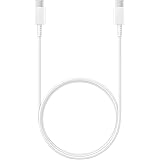
Samsung Original Type C to C Cable - 3.28 Feet (1 Meter), White
₹314.00 (as of October 27, 2026 17:07 GMT +05:30 - More infoProduct prices and availability are accurate as of the date/time indicated and are subject to change. Any price and availability information displayed on [relevant Amazon Site(s), as applicable] at the time of purchase will apply to the purchase of this product.)
Samsung Original 25W USB Type-C Travel Adaptor Without Cable for Google Pixel, Xiaomi, Motorola, iPhone, Samsung Galaxy Tab S/A Series, Galaxy S10/M54/M55/A80/A90/S25/S24, White
₹500.00 (as of October 27, 2026 17:07 GMT +05:30 - More infoProduct prices and availability are accurate as of the date/time indicated and are subject to change. Any price and availability information displayed on [relevant Amazon Site(s), as applicable] at the time of purchase will apply to the purchase of this product.)
Watch the original video: How To Export Whatsapp Chat with Media
Disclosure: This post may contain affiliate links. If you buy through them, Informative Media may earn a small commission at no extra cost to you.
Quick Summary
- Easily export WhatsApp chats including media like photos and videos.
- Works for both individual and group chats on Android and iPhone.
- Creates a ZIP file containing messages and all associated media.
- A simple way to back up important conversations or transfer chats.
Amazon Finds
Recommended Products
Keep Your WhatsApp Conversations Safe and Accessible
We all have those WhatsApp chats we’d love to keep forever – maybe precious family memories, important work discussions, or hilarious group chats. But what happens when you need to back them up or move them to another device? Simply backing up within WhatsApp often doesn’t include all the media. Fortunately, there’s a straightforward method to export your WhatsApp chats along with all the attached photos, videos, voice notes, and documents. Our latest YouTube video breaks down exactly how to do this on both Android and iPhone.
This tutorial is perfect for anyone looking to save their full WhatsApp conversation history, ensuring no media gets left behind. Whether you’re dealing with personal chats or large group conversations, this trick has you covered.
How to Export WhatsApp Chat with Media: Step-by-Step
The process is surprisingly simple and can be done in just a few taps. Here’s how:
For Android Users:
- Open WhatsApp on your Android device.
- Navigate to the specific chat (individual or group) you wish to export.
- Tap the three vertical dots (⋮) located in the top-right corner of the chat screen.
- Select ‘More’ from the dropdown menu.
- Tap on ‘Export Chat’.
- Crucially, choose the ‘Include Media’ option when prompted. This ensures all your photos, videos, and other files are attached.
- Select your preferred method for saving or sharing the export. Options typically include Gmail, Google Drive, Telegram, or your phone’s Files app.
For iPhone Users:
- Open WhatsApp on your iPhone.
- Go to the chat you want to export.
- Tap on the contact’s or group’s name at the top of the chat screen.
- Scroll down and tap ‘Export Chat’.
- Choose whether to ‘Include Media’ or ‘Without Media’. Select ‘Include Media’.
- Select where you want to save or share the exported chat, such as Mail, Google Drive, or Files.
Once you select your destination, WhatsApp will package your chat messages (as a .txt file) and all associated media into a ZIP archive. This makes it easy to store and manage your chat history.
Pro Tips for WhatsApp Chat Exports
- Check Storage: Ensure you have enough free space on your phone and in your chosen cloud storage (like Google Drive) before exporting, especially for chats with lots of media.
- Use a Fast Drive: If transferring to a computer, consider using a fast USB 3.0 flash drive a fast USB drive for quicker transfers.
- Organize Your Exports: Create a specific folder for your WhatsApp exports in Google Drive or your Files app to keep things tidy.
Common Mistakes to Avoid
- Forgetting ‘Include Media’: The most common slip-up is not selecting the ‘Include Media’ option, resulting in a text-only export. Always double-check this step!
- Low Storage: Trying to export a chat with many large media files without sufficient storage can cause the process to fail.
- Not Checking the ZIP File: After exporting, it’s wise to open the ZIP file on the receiving end to confirm all media has been included correctly.
FAQ
Q1: Can I export chats from WhatsApp Web?
No, the built-in export chat feature is primarily available on the WhatsApp mobile apps (Android and iPhone).
Q2: How large can the exported chat file be?
The size depends on the amount of text and media included. For very large chats, it might be best to export in batches or ensure you have ample storage. You might also find it helpful to disable WhatsApp notifications for less interruption while doing this connect external storage.
Q3: Will exported media retain its original quality?
Yes, the media files (photos, videos, audio) are exported in their original format and quality.
Q4: How long can I keep these exported chats?
The exported ZIP file can be stored indefinitely, provided you have space and the storage medium remains accessible. It’s a great way to permanently archive conversations.
By following these simple steps, you can easily export your WhatsApp chats with all their media, ensuring your important conversations are always backed up and accessible.
Looking for more ways to manage your WhatsApp experience? Check out our guides on how to disable or re-enable WhatsApp Status Notifications or how to turn off WhatsApp Blue Ticks to maintain your privacy.

Ambrane Unbreakable 60W / 3A Fast Charging 1.5m Braided Micro USB Cable for Smartphones, Tablets, Laptops & Other Micro USB Devices, 480Mbps Data Sync, Quick Charge 3.0 (RCM15, Black)
₹103.00 (as of October 27, 2026 17:07 GMT +05:30 - More infoProduct prices and availability are accurate as of the date/time indicated and are subject to change. Any price and availability information displayed on [relevant Amazon Site(s), as applicable] at the time of purchase will apply to the purchase of this product.)