
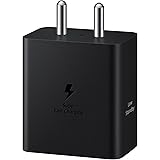
Samsung Galaxy 45W Travel Adaptor (Without Cable), Black
₹839.00 (as of October 27, 2026 17:07 GMT +05:30 - More infoProduct prices and availability are accurate as of the date/time indicated and are subject to change. Any price and availability information displayed on [relevant Amazon Site(s), as applicable] at the time of purchase will apply to the purchase of this product.)
Portronics iKonnect C Pro Type C to 3.5 mm Audio Jack Connector with DAC Headphone Converter Adapter Compatible with iPhone 15 Pro Max/15 Pro/15 Plus, Galaxy S23/S22/S21/S208 & Other Type C Phones
₹195.00 (as of October 27, 2026 17:07 GMT +05:30 - More infoProduct prices and availability are accurate as of the date/time indicated and are subject to change. Any price and availability information displayed on [relevant Amazon Site(s), as applicable] at the time of purchase will apply to the purchase of this product.)
Watch the original video: How to Recover Deleted Photos/Files from Phone [Free]
Disclosure: This post may contain affiliate links. If you buy through them, Informative Media may earn a small commission at no extra cost to you.
Quick Summary
- Recover deleted photos, videos, and files from Android and iPhone without paid software.
- Learn to restore files from phone memory, SD cards, and cloud backups.
- Discover tips to increase your chances of successful data recovery.
- Understand common mistakes to avoid after accidental deletion.
Amazon Finds
Recommended Products
How to Recover Deleted Photos and Files from Your Phone for Free
It’s a sinking feeling: you realize you’ve accidentally deleted precious photos, important documents, or crucial videos from your smartphone. Many believe these files are gone forever, but that’s often not the case. This guide will walk you through methods to recover deleted files from your phone, both Android and iPhone, completely free. For a visual walkthrough, check out this helpful YouTube video: How to Recover Deleted Photos/Files from Phone [Free].
The Problem: Accidental Deletion Happens
Whether you’ve accidentally tapped ‘delete,’ your phone storage got formatted, or you’ve performed a factory reset, losing files can be incredibly frustrating. The good news is that most deleted files aren’t immediately erased from your phone’s storage. Instead, the space they occupied is marked as available for new data. This means that with the right approach, recovery is often possible.
Quick Answer: Free Data Recovery Apps
The most effective free method involves using specialized data recovery applications. These apps scan your phone’s storage for remnants of deleted files. For Android, an app like DiskDigger (linked in the video) is a popular and effective choice. For iPhones, while direct app recovery can be more limited, you can often recover from recent backups.
Step-by-Step Recovery Guide
- Stop Using Your Phone Immediately: This is the most critical step. Continued use, especially taking new photos or downloading files, can overwrite the deleted data, making recovery impossible.
- Install a Recovery App (Android): Download a reputable data recovery app like DiskDigger from the Google Play Store. The video provides a direct link.
- Grant Permissions: Allow the app necessary permissions to scan your device’s storage.
- Perform a Basic Scan: Start with a quick scan. This is usually sufficient for recovering recently deleted photos and files from your gallery or WhatsApp.
- Deep Scan (if needed): If the basic scan doesn’t find your files, perform a more thorough deep scan. This takes longer but can uncover more data.
- Select and Recover: Browse the found files, select the ones you want to restore, and choose a safe location to save them (preferably on a computer or cloud storage, not back onto the phone’s internal memory).
- Check Cloud Backups: For both Android (Google Photos) and iPhone (iCloud), check your cloud backup services. Many deleted items are often stored in a ‘Trash’ or ‘Recently Deleted’ folder within these services for a limited time.
- Check File Manager Recycle Bin: Some file manager apps include a recycle bin feature. Check this for recently deleted documents or other files.
Pro Tips for Higher Success Rates
- Act Fast: The sooner you attempt recovery after deletion, the higher your chances.
- Use a Computer: For Android, connecting your phone to a PC and using desktop recovery software can sometimes yield better results than just a mobile app.
- Recover to External Storage: Always save recovered files to a different location (like an SD card, USB drive, or cloud storage) to avoid overwriting other deleted data.
- Rooting (Android – Use with Caution): While not always necessary, rooting an Android device can sometimes allow recovery apps deeper access to storage, potentially recovering more files. However, rooting carries risks and voids warranties.
Common Mistakes to Avoid
- Continuing to Use the Phone: As mentioned, this is the biggest mistake. Every action can overwrite your deleted files.
- Saving Recovered Files to the Same Device: This can corrupt or overwrite the very data you’re trying to recover.
- Assuming Files are Permanently Gone: Don’t give up too quickly. Try multiple methods and apps if the first one doesn’t work.
Frequently Asked Questions (FAQ)
Q: Can I recover permanently deleted photos from my phone?
A: ‘Permanently deleted’ often means the data has been overwritten. However, recovery apps can sometimes find remnants even after this. Success depends on how much new data has been written to the storage since deletion.
Q: Does this method work for WhatsApp deleted messages and media?
A: Yes, many recovery apps, including DiskDigger, can scan for and recover deleted WhatsApp images, videos, and even audio files, provided they haven’t been overwritten.
Q: What if I factory reset my phone? Can I still recover files?
A: Recovering files after a factory reset is more challenging, as the process wipes the device clean. If you had a backup enabled (cloud or local), restoring from that backup is your best bet. Direct recovery is less likely but not entirely impossible if the reset was very recent and no new data has been written.
Q: How can I prevent losing files in the future?
A: Regularly back up your phone’s data to a cloud service (like Google Drive, Google Photos, or iCloud) or to an external storage device. This is the most reliable way to protect your important files.
If this video helped you make sure to Like, Share and Subscribe for more tech tutorials, smartphone tricks, and tips. Let us know in the comments which phone you are using and what type of file you want to recover!
Internal Links:
- For more smartphone insights, check out our hands-on with potential new devices like Is This the Pixel 10a? Unpacking the Hype and Reality.
- Curious about the latest AI developments? Learn How to Install Google’s Gemma 4 Locally with LM Studio on Your PC.
- Considering a budget-friendly camera phone? Read our Nothing 3a Lite Camera Test: Is This Budget Phone a Photography Champ?

Ambrane Unbreakable 60W / 3A Fast Charging 1.5m Braided Micro USB Cable for Smartphones, Tablets, Laptops & Other Micro USB Devices, 480Mbps Data Sync, Quick Charge 3.0 (RCM15, Black)
₹103.00 (as of October 27, 2026 17:07 GMT +05:30 - More infoProduct prices and availability are accurate as of the date/time indicated and are subject to change. Any price and availability information displayed on [relevant Amazon Site(s), as applicable] at the time of purchase will apply to the purchase of this product.)