Samsung Original 25W USB Type-C Travel Adaptor Without Cable for Google Pixel, Xiaomi, Motorola, iPhone, Samsung Galaxy Tab S/A Series, Galaxy S10/M54/M55/A80/A90/S25/S24, Black
₹449.00 (as of October 27, 2026 17:07 GMT +05:30 - More infoProduct prices and availability are accurate as of the date/time indicated and are subject to change. Any price and availability information displayed on [relevant Amazon Site(s), as applicable] at the time of purchase will apply to the purchase of this product.)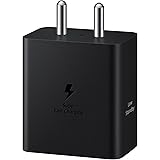
Samsung Galaxy 45W Travel Adaptor (Without Cable), Black
₹839.00 (as of October 27, 2026 17:07 GMT +05:30 - More infoProduct prices and availability are accurate as of the date/time indicated and are subject to change. Any price and availability information displayed on [relevant Amazon Site(s), as applicable] at the time of purchase will apply to the purchase of this product.)
Watch the original video: How to Install Gemma 4(localAI) using LM Studio
Disclosure: This post may contain affiliate links. If you buy through them, Informative Media may earn a small commission at no extra cost to you.
Quick Summary
- Install LM Studio easily on Windows, Mac, and Linux.
- Download and run Google’s Gemma 4 AI model completely offline.
- Choose the right Gemma 4 model size based on your PC’s RAM and GPU.
- Learn optimization tips for smoother performance, especially on lower-end hardware.
- Understand how to fix common loading errors during setup.
Amazon Finds
Recommended Products
Ever wondered if you could run advanced AI models like Google’s Gemma 4 right on your own computer, without needing a constant internet connection? Good news – you absolutely can! This detailed guide, inspired by the video ‘How to Install Gemma 4(localAI) using LM Studio‘, will walk you through installing and setting up Google’s open-source Gemma 4 model using the user-friendly LM Studio software. Whether you’re on Windows, Mac, or Linux, we’ve got you covered.
Running AI models locally offers a fantastic way to keep your data private and experiment freely. LM Studio makes this process surprisingly accessible, even for those new to AI. Let’s dive in!
Why Run Gemma 4 Locally?
Gemma 4, part of Google’s open-source AI family, is a powerful model capable of tasks ranging from coding assistance and content creation to research and general chat. By running it locally via LM Studio, you gain:
- Privacy: Your data stays on your machine.
- Offline Access: No internet needed once the model is downloaded.
- Control: Experiment with settings and model versions without restrictions.
- Cost-Effectiveness: Avoid potential subscription fees for cloud-based AI.
Getting Started: System Requirements and What You’ll Need
Before we begin, it’s essential to check if your system is up to the task. While LM Studio is designed to be efficient, running large AI models requires decent hardware. The primary concern is RAM. The video mentions that different Gemma 4 model sizes (like 2B, 7B, or larger) have varying RAM requirements. A good rule of thumb is to have at least 16GB of RAM for smaller models, with 32GB or more being ideal for smoother performance with larger ones.
You’ll need to download two main things:
- LM Studio: The software that helps you download, manage, and run AI models. Get it from lmstudio.ai/download.
- Gemma 4 Model: This will be downloaded directly within LM Studio.
Step-by-Step Installation Guide
Follow these steps to get Gemma 4 up and running:
Step 1: Install LM Studio
Download the installer for your operating system (Windows, macOS, or Linux) from the official LM Studio website. Run the installer and follow the on-screen prompts. It’s a straightforward process, similar to installing any other application.
Step 2: Download the Gemma 4 Model
Once LM Studio is installed and open, navigate to the model search section (usually represented by a magnifying glass icon). In the search bar, type ‘Gemma 4’. You’ll see various versions and quantizations of the Gemma 4 model. Consider your system’s RAM and GPU when choosing:
- Smaller models (e.g., 2B variants): Require less RAM, suitable for systems with 16GB or less.
- Larger models (e.g., 7B variants): Offer better performance but need more RAM (32GB+ recommended).
- Quantization (e.g., Q4, Q5): Lower quantization means smaller file size and less RAM usage, but might slightly impact accuracy. Higher quantization uses more resources but offers potentially better results.
Click the ‘Download’ button next to your chosen model.
Step 3: Load and Run Gemma 4
After the download is complete, go to the ‘Chat’ or ‘AI Server’ section within LM Studio. At the top, you’ll find an option to select the model you just downloaded. Choose Gemma 4. The model will load into memory. This might take a few moments depending on your system’s speed.
Step 4: Adjust Settings and Chat
Once loaded, you can start interacting with Gemma 4 in the chat interface. Explore the right-hand panel for inference settings. Here you can tweak parameters like ‘Temperature’ (creativity vs. determinism) and ‘Top P’ for different response styles. If you encounter issues, the video offers tips on fixing common loading errors.
Optimization Tips for Smoother Performance
If you’re running Gemma 4 on a lower-end PC, don’t worry! The video provides optimization tips:
- Choose smaller quantized models: Opt for Q4 or Q5 versions of the 2B or 7B models.
- Adjust RAM allocation: LM Studio allows you to specify how much RAM the model can use.
- Disable GPU acceleration if unstable: Sometimes, relying solely on the CPU can be more stable if your GPU drivers are problematic.
- Close other demanding applications: Free up as much system RAM and CPU resources as possible.
Common Mistakes to Avoid
- Downloading the wrong model version: Ensure you select a quantization compatible with your hardware.
- Insufficient RAM: Trying to load a large model with too little RAM will lead to crashes or slow performance.
- Not waiting for the model to load: Loading can take time, especially on older systems. Be patient!
Conclusion
Setting up Google’s Gemma 4 locally with LM Studio is an achievable goal for most users interested in AI. This step-by-step process, detailed in the accompanying video, empowers you to harness the power of local AI for various creative and productive tasks, all while keeping your data secure and private. Don’t forget to explore how this can help with tasks like coding or content writing!
Frequently Asked Questions (FAQ)
Can I run Gemma 4 on a low-end PC?
Yes, you can run Gemma 4 on a lower-end PC by choosing smaller quantized model versions (like 2B Q4_K_M) and optimizing settings within LM Studio. Ensure you have at least 16GB of RAM for the best experience.
How much RAM does Gemma 4 need?
The RAM requirement depends on the model size. Gemma 4 2B variants typically need around 8-12GB, while 7B variants can require 16-32GB or more for optimal performance. Always check the specific model card in LM Studio for details.
Is LM Studio free to use?
Yes, LM Studio is free to download and use. It allows you to download and run various open-source AI models locally without any cost.
Can I use Gemma 4 for coding?
Absolutely. Gemma 4 models are trained on a diverse dataset that includes code, making them capable of assisting with programming tasks, generating code snippets, and explaining code.
If you found this guide helpful, consider subscribing for more AI tutorials and tech tips! For more on exploring useful tech, check out our review on the Nothing 3a Lite Camera Test or learn how to Create FREE AI Videos with NotebookLM.
Samsung Galaxy 45W Travel Adaptor (Without Cable), Black
₹839.00 (as of October 27, 2026 17:07 GMT +05:30 - More infoProduct prices and availability are accurate as of the date/time indicated and are subject to change. Any price and availability information displayed on [relevant Amazon Site(s), as applicable] at the time of purchase will apply to the purchase of this product.)