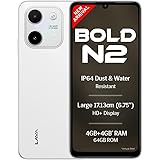
Lava Bold N2 (Siachen White, 4 GB RAM, 64 GB Storage) | 13MP AI Dual Rear Camera | Largest 6.75" HD+ Display | 5000 mAh Battery & 10W Charging | IP64 Water & Dust Proof | Charger & Phone-Case in Box
₹9,349.00 (as of October 27, 2026 17:07 GMT +05:30 - More infoProduct prices and availability are accurate as of the date/time indicated and are subject to change. Any price and availability information displayed on [relevant Amazon Site(s), as applicable] at the time of purchase will apply to the purchase of this product.)
Apple iPhone 16 128 GB: 5G Mobile Phone with Camera Control, A18 Chip and a Big Boost in Battery Life. Works with AirPods; Black
₹76,999.00 (as of October 27, 2026 17:07 GMT +05:30 - More infoProduct prices and availability are accurate as of the date/time indicated and are subject to change. Any price and availability information displayed on [relevant Amazon Site(s), as applicable] at the time of purchase will apply to the purchase of this product.)
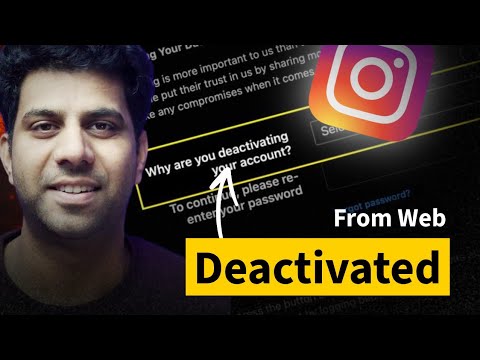
Watch the original video: How to Deactivate Instagram Account from Desktop / Web
Disclosure: This post may contain affiliate links. If you buy through them, Informative Media may earn a small commission at no extra cost to you.
Quick Summary
- You can deactivate your Instagram account using a desktop browser, not just the mobile app.
- The process involves logging in, editing your profile, and selecting the deactivation option.
- Temporarily disabling hides your profile, photos, and comments until you log back in.
- Understand the difference between deactivating and permanently deleting your account.
Amazon Finds
Recommended Products
Taking a Break from Instagram? Here’s How to Deactivate Your Account from Your Desktop
Many of us think that to manage our Instagram accounts, we’re tethered to our phones. That’s especially true when it comes to pausing your presence on the platform. However, if you’re looking to temporarily step away from Instagram and prefer using your computer, you’re in luck! This guide, inspired by the helpful video tutorial ‘How to Deactivate Instagram Account from Desktop / Web’, breaks down the simple process.
You don’t need to download any special apps or even pick up your smartphone. You can achieve this directly through any desktop web browser. Let’s get straight to it.
Why Deactivate?
Whether you need a digital detox, want to focus on other tasks, or are simply trying out a new social media strategy, temporarily deactivating your account is a great option. It hides your profile, photos, comments, and likes until you decide to return. It’s a less permanent step than full deletion, giving you peace of mind.
Step-by-Step Guide to Deactivating Instagram from Desktop
Follow these simple steps to get your account temporarily hidden:
- Log In: Open your preferred web browser (like Chrome, Edge, or Safari) on your Windows laptop or Macbook and go to the Instagram website. Log in using your username and password.
- Navigate to Profile: Once logged in, click on your profile picture in the top right corner of the page.
- Edit Profile: On your profile page, find and click the ‘Edit Profile’ button, usually located just below your bio.
- Find Deactivation Option: Scroll down the ‘Edit Profile’ page. Look for a link that says ‘Temporarily disable my account’ in the bottom right corner. Click on it.
- Select Reason: Instagram will ask you why you’re disabling your account. Choose a reason from the dropdown menu.
- Confirm Password: You’ll need to re-enter your Instagram password to confirm the action.
- Final Confirmation: Click the button that says ‘Temporarily Disable Account’.
And that’s it! Your account is now temporarily deactivated and hidden from other users. You can reactivate it anytime by simply logging back into Instagram.
Deactivate vs. Delete: What’s the Difference?
It’s important to know that deactivating is not the same as deleting. Deactivation is temporary; your profile is hidden, but all your data is preserved. Deleting your account is permanent. Once deleted, you lose access to your photos, videos, comments, and likes forever, and you can’t sign up again with the same username.
Troubleshooting: ‘Temporarily Disable Account’ Option Not Visible?
Sometimes, you might not see the deactivation option. This often happens because Instagram has consolidated account management into the ‘Account Center’.
- If you can’t find the direct link on the ‘Edit Profile’ page, try navigating through the ‘Account Center’. You can usually access this via the settings menu or directly through a link provided in Instagram’s help pages.
- Ensure you are using the main Instagram website and not a third-party application.
Pro-Tip: Streamline Your Social Media Management
If you find yourself frequently managing social media accounts, consider optimizing your desktop setup. A comfortable keyboard and mouse can make a world of difference. For managing multiple platforms or if you’re diving into more advanced digital tasks, exploring tools like installing Google Gemma 4 on your PC can open up new possibilities for productivity.
Frequently Asked Questions (FAQ)
Can I deactivate my Instagram account from my phone’s browser?
Yes, the steps are the same whether you use a desktop browser or your phone’s mobile browser. You just need to log in via instagram.com.
How long can I keep my Instagram account deactivated?
There is no time limit. You can keep your account deactivated for as long as you need. It will remain hidden until you log back in.
Will my Instagram data be deleted if I deactivate?
No, deactivating your account is temporary. Your profile, photos, comments, and likes are hidden but remain saved. They will reappear when you log back in.
Taking a break should be simple. By following these steps, you can easily manage your Instagram presence from your desktop. If you found this helpful, don’t forget to check out other social media and tech tutorials on our site!
Lava Bold N2 (Siachen White, 4 GB RAM, 64 GB Storage) | 13MP AI Dual Rear Camera | Largest 6.75" HD+ Display | 5000 mAh Battery & 10W Charging | IP64 Water & Dust Proof | Charger & Phone-Case in Box
₹9,349.00 (as of October 27, 2026 17:07 GMT +05:30 - More infoProduct prices and availability are accurate as of the date/time indicated and are subject to change. Any price and availability information displayed on [relevant Amazon Site(s), as applicable] at the time of purchase will apply to the purchase of this product.)