
Portronics iKonnect C Pro Type C to 3.5 mm Audio Jack Connector with DAC Headphone Converter Adapter Compatible with iPhone 15 Pro Max/15 Pro/15 Plus, Galaxy S23/S22/S21/S208 & Other Type C Phones
₹195.00 (as of October 27, 2026 17:07 GMT +05:30 - More infoProduct prices and availability are accurate as of the date/time indicated and are subject to change. Any price and availability information displayed on [relevant Amazon Site(s), as applicable] at the time of purchase will apply to the purchase of this product.)
Samsung Galaxy S25 Ultra 5G AI Smartphone (Titanium Silverblue, 12GB RAM, 256GB Storage), 200MP Camera, 5000mAh Ultra Long Battery, QHD+ Dynamic AMOLED 2X, Galaxy AI, Knox Security, S Pen Included
₹96,999.00 (as of October 27, 2026 17:07 GMT +05:30 - More infoProduct prices and availability are accurate as of the date/time indicated and are subject to change. Any price and availability information displayed on [relevant Amazon Site(s), as applicable] at the time of purchase will apply to the purchase of this product.)
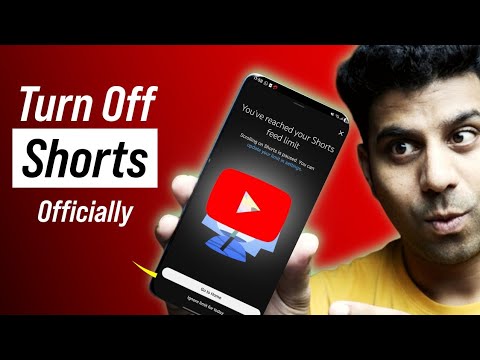
Watch the original video: Disable Youtube Shorts [Officially]
Disclosure: This post may contain affiliate links. If you buy through them, Informative Media may earn a small commission at no extra cost to you.
Quick Summary
- Use YouTube’s built-in Time Management settings to control Shorts.
- Disable Shorts recommendations and manage watch history to retrain the algorithm.
- This method works on both Android and iPhone without extra apps.
- Reclaim your focus and reduce distractions from endless scrolling.
- Perfect for students and professionals aiming for better productivity.
Amazon Finds
Recommended Products
Tired of the Endless YouTube Shorts Scroll? Here’s How to Officially Disable Them
YouTube Shorts has become a massive part of the platform, but for many, it’s more of a distraction than a feature. If you find yourself losing hours to the endless scroll and wish you could just get back to watching longer videos, you’re not alone. Fortunately, YouTube offers built-in tools to help you manage your time and significantly reduce or even disable Shorts from your feed. This method, as shown in the video “Disable Youtube Shorts [Officially]”, uses official YouTube settings, so no third-party apps or complicated workarounds are needed.
The Problem: Shorts Taking Over Your YouTube Experience
The short-form video format is addictive by design. While entertaining for some, it can easily disrupt focus, especially for students and professionals who need to concentrate. The constant barrage of new, bite-sized content can make it hard to find and watch the longer, more in-depth videos you might actually be interested in. This is where YouTube’s own ‘Digital Wellbeing’ features come into play.
The Quick Answer: Use Time Management Settings
The most effective way to tackle YouTube Shorts is by utilizing the platform’s own time management and digital wellbeing tools. By adjusting a few settings, you can retrain the algorithm, limit recommendations, and ultimately stop Shorts from dominating your homepage. This official method works seamlessly on both Android and iOS devices.
Step-by-Step Guide to Disabling YouTube Shorts
- Access Time Management Settings: Open your YouTube app. Tap on your profile picture in the top right corner, then select “Settings.” From there, choose “Time management.”
- Turn Off YouTube Shorts Recommendations: Within the Time Management section, look for options related to Shorts. You might find a direct toggle or settings to limit Shorts recommendations. Explore these options to see what best suits your needs.
- Manage Your Watch History: To further influence the algorithm, pause your watch history. Go to Settings > Manage all history. From here, you can pause history tracking. This prevents YouTube from learning your preferences based on Shorts and helps reset the recommendations.
- Use ‘Take a Break’ Reminders: While not directly disabling Shorts, setting up regular “Take a break” reminders can help you become more mindful of your viewing time. You can find this under the Time Management settings.
- Clear Past YouTube Premium (If Applicable): Some users have reported success by clearing their past interactions with Shorts. This might involve finding options related to “Clear Interest” or similar settings within your Google Account activity, which YouTube pulls data from.
- Manage Notifications: To prevent Shorts from popping up unexpectedly, review your notification settings. Go to Settings > Notifications and adjust how you receive alerts for Shorts or other content.
Pro Tips for Maximum Effectiveness
- Watch Till the End: Make sure to watch the entire video for all the nuances. Small settings can indeed make a big difference.
- Consistency is Key: Stick to these settings. Retraining the algorithm takes a little time and consistent effort.
- Explore Google Account Activity: Delve into your Google Account’s “Data & privacy” settings to refine your YouTube watch history and search history further. This offers more granular control.
Common Mistakes to Avoid
- Relying on Third-Party Apps: Avoid downloading unofficial apps or extensions, as they can pose security risks and may not be effective long-term. Stick to YouTube’s official settings.
- Not Clearing Interest/History: Simply turning off recommendations might not be enough if your history is still feeding the algorithm. Actively manage your watch and search history.
- Ignoring Notifications Settings: Unmanaged notifications can still pull you back into Shorts, even if they’re less frequent on your homepage.
Frequently Asked Questions (FAQ)
How do I officially disable YouTube Shorts?
You can officially disable YouTube Shorts by using the built-in Time Management and Digital Wellbeing settings within the YouTube app. This involves adjusting recommendation settings, managing watch history, and potentially pausing your activity. It does not require any third-party applications.
Will this method remove Shorts completely from my YouTube homepage?
This method significantly reduces the appearance of YouTube Shorts and limits recommendations. While it might not remove every single instance instantly, it drastically curtails their presence, allowing you to focus on longer videos. Consistency with the settings is key.
Does this work on both Android and iPhone?
Yes, the described method utilizes YouTube’s official settings, which are available on both Android and iPhone devices. The exact menu names might slightly differ, but the core functionality within Time Management and Settings remains the same.
Do I need to delete the YouTube app or install anything new?
No, you do not need to delete the YouTube app or install any new third-party applications. All the necessary adjustments can be made directly within the YouTube app’s official settings menu.
By implementing these official YouTube settings, you can effectively take control of your viewing experience and say goodbye to the endless distraction of Shorts. It’s a simple yet powerful way to improve focus and productivity.

Samsung Original 25W USB Type-C Travel Adaptor Without Cable for Google Pixel, Xiaomi, Motorola, iPhone, Samsung Galaxy Tab S/A Series, Galaxy S10/M54/M55/A80/A90/S25/S24, Black
₹449.00 (as of October 27, 2026 17:07 GMT +05:30 - More infoProduct prices and availability are accurate as of the date/time indicated and are subject to change. Any price and availability information displayed on [relevant Amazon Site(s), as applicable] at the time of purchase will apply to the purchase of this product.)