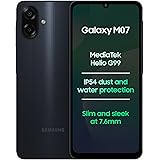
Samsung Galaxy M07 Mobile (Black, 4GB RAM, 64GB Storage) | MediaTek Helio G99 | AnTuTu 624K | IP54| 50MP Camera | 7.6mm Slim | 5000mAh Battery | 25W Fast Charging | 6 Gen OS Upgrades | Without Charger
₹11,999.00 (as of October 27, 2026 17:07 GMT +05:30 - More infoProduct prices and availability are accurate as of the date/time indicated and are subject to change. Any price and availability information displayed on [relevant Amazon Site(s), as applicable] at the time of purchase will apply to the purchase of this product.)
Ambrane Multipurpose Tabletop Mobile Stand | Adjustable Angle & Height| Universal Holder for iPhone, Samsung, OnePlus & All Smartphones | Portable, Anti-Skid | for Home, Office, Bed & Gifting (Black)
₹149.00 (as of October 27, 2026 17:07 GMT +05:30 - More infoProduct prices and availability are accurate as of the date/time indicated and are subject to change. Any price and availability information displayed on [relevant Amazon Site(s), as applicable] at the time of purchase will apply to the purchase of this product.)
Watch the original video: How to Remove Instagram Account From Login List
Disclosure: This post may contain affiliate links. If you buy through them, Informative Media may earn a small commission at no extra cost to you.
Quick Summary
- Quickly remove saved Instagram accounts from the login screen.
- Covers both Android and iPhone devices.
- Simple, step-by-step instructions for a cleaner login experience.
- Essential for managing multiple accounts or securing old ones.
Amazon Finds
Recommended Products
Is Your Instagram Login Screen Cluttered?
Ever open Instagram and see a list of old or unwanted accounts on the login screen? It’s a common issue, especially if you manage multiple profiles or have shared your phone before. This can be annoying and, frankly, a bit of a privacy concern if someone else gets hold of your device.
Fortunately, cleaning up that list is straightforward. We’ll walk you through how to remove Instagram accounts from your login screen on both Android and iPhone devices, ensuring a cleaner and more secure experience. Check out the video tutorial here for a visual guide: How to Remove Instagram Account From Login List.
Quick Fix: Removing Accounts
The simplest way to remove an account from the login list is directly from the login screen itself. This method works for both operating systems.
Step-by-Step Guide: Removing Instagram Accounts
For Android Users:
- Open the Instagram app.
- Tap on the profile icon in the bottom right corner.
- Tap your username at the top.
- Select “Log out [your username]” or “Log out all accounts”.
- On the login screen, tap your username.
- You’ll see a list of saved accounts. Tap “Remove account” next to the one you want to delete.
- Confirm the removal.
For iPhone Users:
- Open the Instagram app.
- Go to your profile by tapping the icon in the bottom right.
- Tap your username at the top.
- Choose “Log out [your username]” or “Log out all accounts”.
- When you see the login page, tap the account you wish to remove.
- Select “Remove account” from the options that appear.
- Confirm by tapping “Remove”.
Pro Tips for Managing Your Login List
- Log Out All: If you have several accounts to remove, using the “Log out all accounts” option is a time-saver. You can then log back into only the ones you need.
- Regular Checks: Make it a habit to review your saved accounts periodically, especially if you frequently switch between profiles or use shared devices.
- Privacy First: Selling or giving away an old phone? Always ensure all your accounts are logged out and removed from the device. This is also a good time to review your sent Instagram follow requests to ensure you know who you’ve tried to connect with.
Common Mistakes to Avoid
- Confusing Log Out with Remove: Simply logging out of an account doesn’t remove it from the saved list. You must actively choose the “Remove account” option.
- Forgetting to Log Out All: If you’re trying to completely clear the list, don’t just remove one account and assume you’re done. Use the “Log out all accounts” feature for a fresh start.
Frequently Asked Questions (FAQ)
Q1: What happens after I remove an account from the login list?
A: The account will no longer appear on your Instagram login screen. You will need to re-enter the username and password if you wish to log into it again.
Q2: Can I remove an account if I’m currently logged into it?
A: Yes, you can remove an account directly from the login screen even if you are currently logged into other accounts.
Q3: Does removing an account delete my profile?
A: No, removing an account from the login list only removes it from saved credentials on your device. Your Instagram profile and data remain unaffected.
Q4: Why is an account still showing after I logged out?
A: You likely only logged out of the account. You need to perform the specific “Remove account” step from the login screen to clear it from the saved list.
Keeping your Instagram login screen tidy is a small but important step in managing your digital presence. Follow these steps and enjoy a cleaner, more organized Instagram experience!
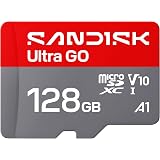
SANDISK 128GB Ultra Go microSD Card UHS-I, Up to 190MB/s, Full HD Video, Memory Card for Android Smartphones, Tablets, 10-Year Warranty
₹1,999.00 (as of October 27, 2026 17:07 GMT +05:30 - More infoProduct prices and availability are accurate as of the date/time indicated and are subject to change. Any price and availability information displayed on [relevant Amazon Site(s), as applicable] at the time of purchase will apply to the purchase of this product.)