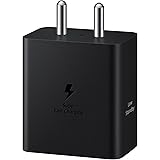
Apple iPhone 16 128 GB: 5G Mobile Phone with Camera Control, A18 Chip and a Big Boost in Battery Life. Works with AirPods; Black
₹76,999.00 (as of October 27, 2026 17:07 GMT +05:30 - More infoProduct prices and availability are accurate as of the date/time indicated and are subject to change. Any price and availability information displayed on [relevant Amazon Site(s), as applicable] at the time of purchase will apply to the purchase of this product.)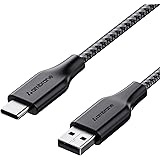
Ambrane Unbreakable 3A Fast Charging 1.5m Braided Type C Cable for Smartphones, Tablets & other Type C devices, 480Mbps Data Sync, Quick Charge 3.0 (RCT15A, Black)
₹129.00 (as of October 27, 2026 17:07 GMT +05:30 - More infoProduct prices and availability are accurate as of the date/time indicated and are subject to change. Any price and availability information displayed on [relevant Amazon Site(s), as applicable] at the time of purchase will apply to the purchase of this product.)
Watch the original video: How to Logout Gmail Account from Android
Disclosure: This post may contain affiliate links. If you buy through them, Informative Media may earn a small commission at no extra cost to you.
Quick Summary
- Direct logout isn’t available in the Gmail app for Android.
- You need to remove your Google Account from the device settings.
- This process works for all major Android phone brands.
- Understand what happens after removing an account and essential precautions.
Amazon Finds
Recommended Products
How to Log Out of Your Gmail Account on Android
Ever found yourself needing to log out of your Gmail account on an Android phone, only to realize there’s no obvious ‘Logout’ button in the app? You’re definitely not the only one! Many users search for this, but the trick is that you actually remove your Google Account from the device itself, not just the Gmail app. This is crucial for security and managing your data.
We’ve got a straightforward video guide that walks you through the entire process, ensuring you can safely remove or log out of your Gmail account. This guide is essential for anyone looking to manage their accounts on shared devices or simply wanting to disconnect an account from their phone.
Watch the full video tutorial here: How to Logout Gmail Account from Android
Why You Might Need to Log Out of Gmail
There are several reasons you might want to log out of your Gmail or Google Account on your Android device:
- Selling or Giving Away Your Phone: It’s vital to remove all personal accounts before passing your device to someone else.
- Using a Shared Device: If you’re borrowing a phone or using one in a public space, logging out ensures your data remains private.
- Managing Multiple Accounts: Sometimes, you just want to clean up and remove accounts you no longer use on that specific device.
- Security Concerns: If you suspect unauthorized access, logging out is a quick first step.
Step-by-Step Guide: Logging Out of Gmail on Android
The process involves removing your Google Account from your Android phone’s settings. This action logs you out of Gmail and other Google services linked to that account (like Drive, Photos, Play Store, etc.) on your device.
For Single or Multiple Accounts:
- Open Settings: Go to your phone’s main ‘Settings’ app.
- Find Accounts: Scroll down and tap on ‘Accounts’ or ‘Users & accounts’ (the exact wording might vary slightly depending on your Android version and manufacturer).
- Select Your Google Account: You’ll see a list of accounts on your phone. Tap on the Google account you wish to remove or log out of. If you have multiple Google accounts added, they will all be listed here.
- Remove Account: On the account screen, you should see an option like ‘Remove account’ or a three-dot menu (⋮) in the corner, which also contains the ‘Remove account’ option. Tap on it.
- Confirm: A confirmation message will appear, warning you that removing the account will delete all its messages, contacts, and other data from the phone. Tap ‘Remove account’ again to confirm.
That’s it! Your Gmail account is now logged out and removed from your Android phone. If you had multiple accounts, repeat the steps for each one you want to remove.
What Happens After Logging Out?
- You will be signed out of Gmail and all other Google services associated with that account on your device.
- Emails, contacts, calendar events, and other data synced with that account will no longer be accessible directly from your phone.
- If you later need to access the account on the same phone, you can simply sign back in through the Gmail app or by adding the Google Account again in the phone’s settings.
Important Precautions Before Removing Your Account
- Backup Data: Ensure any important data associated with the account that you want to keep is backed up or synced elsewhere (e.g., Google Photos, Google Drive, or a computer).
- Know Your Password: Make sure you remember your Google account password, as you’ll need it to sign back in later or if you add the account to another device.
- Device Security: If you’re selling or giving away your phone, consider performing a factory reset after removing all accounts to ensure all personal data is wiped clean.
FAQ
- Q1: Can I log out of just the Gmail app without removing my Google Account from my phone?
- A1: No, the Gmail app for Android doesn’t have a direct logout option. You must remove the associated Google Account from your phone’s settings to log out.
- Q2: Will removing my Google Account delete my emails permanently?
- A2: No, removing the account from your phone only disconnects it. Your emails and data remain safe on Google’s servers. You can sign back in anytime to access them.
- Q3: How do I add my Gmail account back to my Android phone after removing it?
- A3: Go to Settings > Accounts > Add account > Google. Follow the prompts to sign in with your email and password.
- Q4: Does this method work for all Android phones?
- A4: Yes, this method is standard across most Android devices, including Samsung, Xiaomi, OnePlus, Vivo, Oppo, Realme, and others.
Conclusion
Logging out of your Gmail account on Android is a straightforward process once you know where to look. By navigating through your phone’s settings, you can safely remove your Google Account and ensure your privacy, especially when handing over your device. Remember to always back up important data and be sure of your password before proceeding. This simple step can save you a lot of potential hassle.
For more helpful tech tips and tutorials, be sure to explore our other guides. If you’re interested in mobile photography, check out our reviews on the iPhone Air Camera Test or the latest iPhone 17 Pro Camera Test.
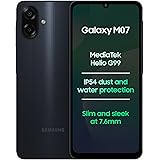
Samsung Galaxy M07 Mobile (Black, 4GB RAM, 64GB Storage) | MediaTek Helio G99 | AnTuTu 624K | IP54| 50MP Camera | 7.6mm Slim | 5000mAh Battery | 25W Fast Charging | 6 Gen OS Upgrades | Without Charger
₹11,999.00 (as of October 27, 2026 17:07 GMT +05:30 - More infoProduct prices and availability are accurate as of the date/time indicated and are subject to change. Any price and availability information displayed on [relevant Amazon Site(s), as applicable] at the time of purchase will apply to the purchase of this product.)