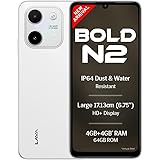
Lava Bold N2 (Siachen White, 4 GB RAM, 64 GB Storage) | 13MP AI Dual Rear Camera | Largest 6.75" HD+ Display | 5000 mAh Battery & 10W Charging | IP64 Water & Dust Proof | Charger & Phone-Case in Box
₹9,349.00 (as of October 27, 2026 17:07 GMT +05:30 - More infoProduct prices and availability are accurate as of the date/time indicated and are subject to change. Any price and availability information displayed on [relevant Amazon Site(s), as applicable] at the time of purchase will apply to the purchase of this product.)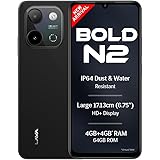
Lava Bold N2 (Indus Black, 4 GB RAM, 64 GB Storage) | 13MP AI Dual Rear Camera | Largest 6.75" HD+ Display | 5000 mAh Battery & 10W Charging | IP64 Water & Dust Proof | Charger & Phone-Case in Box
₹9,349.00 (as of October 27, 2026 17:07 GMT +05:30 - More infoProduct prices and availability are accurate as of the date/time indicated and are subject to change. Any price and availability information displayed on [relevant Amazon Site(s), as applicable] at the time of purchase will apply to the purchase of this product.)
Watch the original video: [100% Working] How to Record Whatsapp Calls from both side
Disclosure: This post may contain affiliate links. If you buy through them, Informative Media may earn a small commission at no extra cost to you.
Quick Summary
- WhatsApp doesn’t have a built-in call recorder.
- Third-party apps like Cube ACR are your best bet for recording calls.
- Ensure you grant necessary permissions for the app to function correctly.
- Always be mindful of privacy laws and inform the other party before recording.
Amazon Finds
Recommended Products
Many of us have found ourselves needing to record a WhatsApp call, whether it’s to save important information, document a conversation, or for personal records. The tricky part is that WhatsApp doesn’t offer a native call recording feature. So, how do you actually capture both sides of the conversation? This guide, inspired by the tutorial video “[100% Working] How to Record Whatsapp Calls from both side” ([https://www.youtube.com/watch?v=RCLfyfYGg84](https://www.youtube.com/watch?v=RCLfyfYGg84)), will walk you through the most reliable methods for Android users.
The Problem: No Built-in WhatsApp Call Recorder
Unlike some native phone dialers, WhatsApp calls, both voice and video, cannot be recorded directly through the app itself. This leaves many users searching for workarounds. Simply hitting ‘record’ during a call isn’t an option within WhatsApp.
The Solution: Third-Party Call Recording Apps
The most effective way to record WhatsApp calls on Android is by using specialized third-party call recording applications. These apps work by capturing the audio stream during a call. The video tutorial specifically highlights the Cube ACR app as a reliable solution. It’s important to note that not all apps work perfectly due to Android’s security measures, but Cube ACR has proven effective for many.
Step-by-Step Guide Using Cube ACR (Based on the Video Tutorial)
Here’s a breakdown of how to set up and use Cube ACR, following the steps outlined in the video:
- Install Cube ACR App: Download and install the Cube ACR application from your device’s app store.
- Configure Permissions and Settings: Upon first launch, the app will request several permissions, including access to your microphone, contacts, and storage. Grant these permissions. You’ll also need to enable call recording within the app’s settings.
- Install Cube ACR Helper: For enhanced functionality and to ensure proper recording, install the companion ‘Cube ACR Helper’ app when prompted. This helper app often manages background processes and permissions more effectively.
- Enable Connector and Finalize Setup: The app might guide you through enabling a ‘Connector’ or similar feature. Follow these on-screen instructions carefully to finalize the setup. This often involves making the app accessible in the background.
- Running Cube ACR and Recording Calls: Once set up, the app should automatically detect incoming and outgoing WhatsApp calls. You can usually access recordings within the Cube ACR app itself, sorted by contact or date. The video demonstrates how the app interface works for managing these recordings.
Pro-Tips for Better Call Recordings
- Ensure Clear Audio: Use your phone in a quiet environment during calls you intend to record.
- Check App Settings: Explore Cube ACR’s settings for options like audio source selection (e.g., VoIP call recording) to optimize quality.
- Keep Apps Updated: Regularly update both Cube ACR and its helper app to benefit from the latest bug fixes and compatibility improvements.
Common Mistakes to Avoid
- Forgetting Permissions: If you don’t grant all necessary permissions, the app won’t be able to record properly. Double-check these in your phone’s settings.
- Ignoring Legalities: Recording calls without the consent of all parties can be illegal in many regions. Always be aware of and adhere to your local laws.
- Conflicting Apps: Ensure no other call recording apps are running simultaneously, as they can interfere with each other.
Frequently Asked Questions (FAQ)
Does WhatsApp have a built-in call recording feature?
No, WhatsApp does not offer a native or built-in feature for recording calls. You need to rely on third-party applications.
Can I record WhatsApp video calls?
Yes, apps like Cube ACR can record both voice and video calls. However, video call recording typically captures only the audio, not the video feed itself, due to technical limitations and privacy concerns.
Is it legal to record WhatsApp calls?
The legality of call recording varies by region. In many places, it is illegal to record a conversation without the consent of all parties involved. Always check your local laws and inform the other person before recording.
Why is my WhatsApp call recording not working?
This could be due to several reasons: missing permissions for the app, a conflicting app, an unsupported Android version, or the app not being configured correctly. Reviewing the app’s settings and ensuring all permissions are granted is the first step.
By following these steps and tips, you can effectively record your WhatsApp calls on your Android device. Remember to always use this feature responsibly and ethically.
For more useful tech tips and app tutorials, be sure to subscribe to Informative Media!
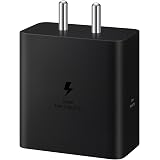
Samsung Original 60W Power Adapter (Black), GaN Fast Charging, USB Power Delivery 3.1, Universal Compatibility (Without Cable)
₹999.00 (as of October 27, 2026 17:07 GMT +05:30 - More infoProduct prices and availability are accurate as of the date/time indicated and are subject to change. Any price and availability information displayed on [relevant Amazon Site(s), as applicable] at the time of purchase will apply to the purchase of this product.)