
Portronics Bridge Y USB 3.0 to Type C OTG Adaptor, 10Gbps High Speed Data Transfer, Thunderbolt to USB Adapter, Compatible for All Type C Devices, Smartphone, Laptops, Tablets, Chargers, MacBook
₹99.00 (as of October 27, 2026 17:07 GMT +05:30 - More infoProduct prices and availability are accurate as of the date/time indicated and are subject to change. Any price and availability information displayed on [relevant Amazon Site(s), as applicable] at the time of purchase will apply to the purchase of this product.)
Ambrane Unbreakable 60W / 3A Fast Charging 1.5m Braided Micro USB Cable for Smartphones, Tablets, Laptops & Other Micro USB Devices, 480Mbps Data Sync, Quick Charge 3.0 (RCM15, Black)
₹103.00 (as of October 27, 2026 17:07 GMT +05:30 - More infoProduct prices and availability are accurate as of the date/time indicated and are subject to change. Any price and availability information displayed on [relevant Amazon Site(s), as applicable] at the time of purchase will apply to the purchase of this product.)
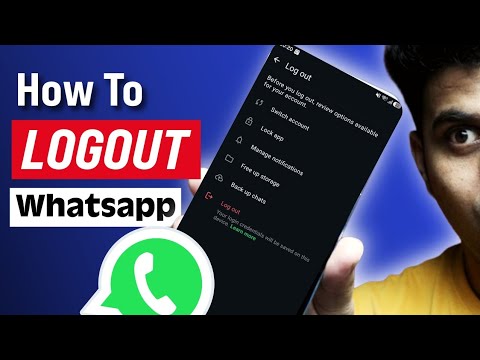
Watch the original video: [New Feature] How To Logout Whatsapp
Disclosure: This post may contain affiliate links. If you buy through them, Informative Media may earn a small commission at no extra cost to you.
Quick Summary
- Understand why logging out is important for security.
- Follow step-by-step instructions for Android and iPhone.
- Learn how to log out from WhatsApp Web/Desktop.
- Discover how to remove your account from old devices.
Amazon Finds
Recommended Products
In today’s digital world, keeping your accounts secure is paramount, and knowing how to manage your WhatsApp login across devices is a key part of that. If you’ve ever wondered how to log out of WhatsApp, you’re in the right place. This post, inspired by the helpful video tutorial ‘[New Feature] How To Logout Whatsapp’, breaks down the process for both Android and iPhone users.
Why You Might Need to Logout of WhatsApp
There are several reasons you might want to log out of your WhatsApp account. Perhaps you’re selling or giving away an old phone and want to ensure your data is secure. Maybe you’ve used WhatsApp Web or Desktop on a shared computer and need to disconnect. Or, you simply want to temporarily remove your account from a device without deleting it entirely. Whatever the reason, the process is straightforward.
Logging Out on Your Phone (Android & iPhone)
Unlike many other apps, WhatsApp doesn’t have a direct ‘Logout’ button within the app itself on your phone. Instead, you ‘remove your account’ from the device. This effectively logs you out.
For Android Users:
- Open WhatsApp.
- Tap the three vertical dots (Menu) in the top-right corner.
- Go to Settings.
- Tap on Account.
- Select Delete account.
- Follow the on-screen instructions. You’ll need to enter your phone number to confirm.
Note: Deleting your account removes your message history, removes you from groups, and deletes your WhatsApp account data. If you just want to remove WhatsApp from the device, uninstalling the app will achieve this.
For iPhone Users:
- Open WhatsApp.
- Tap on Settings in the bottom-right corner.
- Go to Account.
- Select Delete account.
- Follow the on-screen instructions, including entering your phone number for confirmation.
Logging Out from WhatsApp Web/Desktop
This is the more common scenario for a direct ‘logout’ action. If you’ve logged into WhatsApp on a computer and want to sign out:
On WhatsApp Web:
- Open WhatsApp Web in your browser.
- Click the three vertical dots (Menu) next to your profile picture in the top-left.
- Select Log out.
On WhatsApp Desktop App:
- Open the WhatsApp Desktop application.
- Click the three vertical dots (Menu) or your profile picture.
- Select Log out.
This will disconnect your session from the computer, ensuring no one else can access your messages. It’s always a good practice to log out of WhatsApp Web/Desktop when using public or shared computers.
Pro Tips for Account Security
- Uninstalling vs. Deleting: If you’re just switching phones or want to temporarily stop using WhatsApp on a device, uninstalling the app is sufficient. Use the ‘Delete Account’ option only if you intend to permanently stop using WhatsApp.
- Two-Step Verification: Always enable two-step verification to add an extra layer of security to your account. This helps prevent unauthorized access even if someone gets your SIM card or OTP. Check out our guide on Temporary Numbers for OTP Verification for added privacy insights.
- Stay Updated: Keep your WhatsApp app updated to benefit from the latest security features and bug fixes. For more on this, see our post on Stay Ahead: Unpacking the Latest WhatsApp New Updates.
Common Mistakes to Avoid
- Confusing ‘Delete Account’ with ‘Uninstall’: Remember that deleting your account is permanent for WhatsApp services, while uninstalling just removes the app from your phone.
- Forgetting to Log Out of Web/Desktop: Always log out from shared computers to protect your privacy.
Frequently Asked Questions (FAQ)
Does logging out delete my chats?
If you choose to ‘Delete Account’ on your phone, it will remove your message history from that device and your WhatsApp account. If you log out from WhatsApp Web/Desktop, your chats on your phone remain unaffected.
Can I log out of WhatsApp without uninstalling the app?
On your phone, you cannot ‘log out’ directly. You must choose to ‘Delete Account’ if you want to remove it from the device. Uninstalling the app simply removes it from your phone without deleting your account. For WhatsApp Web/Desktop, there is a direct ‘Log out’ option.
What happens if I delete my WhatsApp account?
Deleting your WhatsApp account is permanent. It removes your account information and messages from WhatsApp’s servers, removes you from all WhatsApp groups, and deletes the message history on your phone. You will need to re-register with a new account if you wish to use WhatsApp again.
By understanding these steps, you can easily manage your WhatsApp presence across all your devices, ensuring your conversations and personal information remain secure.

Portronics iKonnect C Pro Type C to 3.5 mm Audio Jack Connector with DAC Headphone Converter Adapter Compatible with iPhone 15 Pro Max/15 Pro/15 Plus, Galaxy S23/S22/S21/S208 & Other Type C Phones
₹195.00 (as of October 27, 2026 17:07 GMT +05:30 - More infoProduct prices and availability are accurate as of the date/time indicated and are subject to change. Any price and availability information displayed on [relevant Amazon Site(s), as applicable] at the time of purchase will apply to the purchase of this product.)