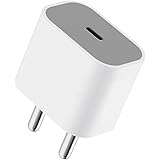
Apple 20W USB-C Power Adapter (for iPhone, iPad & AirPods), White
₹1,699.00 (as of October 27, 2026 17:07 GMT +05:30 - More infoProduct prices and availability are accurate as of the date/time indicated and are subject to change. Any price and availability information displayed on [relevant Amazon Site(s), as applicable] at the time of purchase will apply to the purchase of this product.)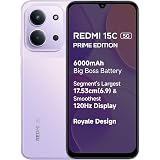
Redmi 15C 5G Prime Edition Dusk Purple 6GB + 128GB | Massive 6000mAh Battery | Segment's Largest 17.53cm Display Up to 120Hz | MediaTek Dimensity 6300 | 33W Fast Charging | 50MP AI Dual Camera
₹17,999.00 (as of October 27, 2026 17:07 GMT +05:30 - More infoProduct prices and availability are accurate as of the date/time indicated and are subject to change. Any price and availability information displayed on [relevant Amazon Site(s), as applicable] at the time of purchase will apply to the purchase of this product.)
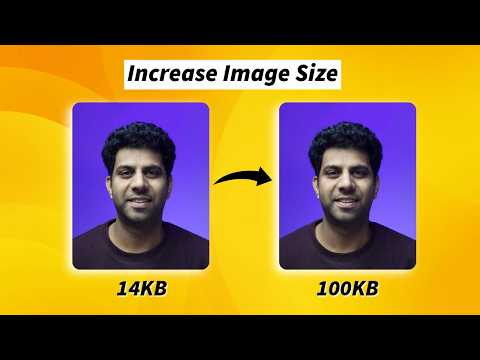
Watch the original video: How To Increase KB Size of Photo in Mobile for Online form [2 Easy Ways]
Disclosure: This post may contain affiliate links. If you buy through them, Informative Media may earn a small commission at no extra cost to you.
Quick Summary
- Understand photo size limits for online forms before starting.
- Use online tools to precisely adjust your photo’s KB size.
- Try the screenshot trick on Android for a quick KB boost.
- Ensure your photo meets the specific requirements of the online form.
Recommended Product
Smartphone Tripod with Phone Mount
A stable tripod can help ensure clear, high-resolution photos, which are easier to manage for size adjustments.
Encountering photo size limitations when trying to submit an online form from your phone? It’s a common frustration, especially when your picture is too small in kilobytes (KB). Fortunately, you don’t need a desktop computer to fix this. We’ve got two straightforward methods, inspired by the helpful techniques shown in the Informative Media YouTube video, to increase your photo’s KB size right on your mobile device.
Why Photo Size Matters for Online Forms
Many government portals, job applications, and educational institutions specify a minimum and maximum file size for uploaded photos. If your photo’s KB size is too low, it might be rejected, or the image quality could be compromised. Knowing the exact requirement is the first step.
Recommended Product
Portable Photo Printer
While not directly for increasing KB size, it's relevant for users who frequently need to print photos from their mobile, implying a need to manage photo files.
Quick Answer: Two Easy Ways to Increase Photo KB Size
You can increase your photo’s KB size using:
- Online resizing tools.
- A simple Android screenshot trick.
Method 1: Using Online Tools
Several websites allow you to upload your photo and adjust its file size without compromising too much on quality. Here’s how you can do it:
- Check Form Requirements: First, note down the exact KB size (or range) your online form requires.
- Find an Online Tool: Search for “increase image size online” or “photo resizer online” on your mobile browser. Many free options are available.
- Upload Your Photo: Select your photo and upload it to the chosen online tool.
- Adjust Settings: Look for options to increase file size, change compression levels, or set a specific KB target. Some tools might let you choose a higher quality JPEG setting.
- Download the Adjusted Photo: Once you’re satisfied with the preview and size, download the new image file.
Pro Tip: Be cautious with online tools. Stick to reputable websites to avoid malware or privacy issues. Always check the final file size before using it.
Method 2: The Android Screenshot Trick (Best for Low KB Sizes)
This method is particularly effective if your photo’s original KB size is very low and you need a quick boost. It works by re-encoding the image at a higher quality, effectively increasing its file size.
- Open the Photo: Open your small-sized photo using your phone’s gallery app.
- Take a Screenshot: Capture a screenshot of the photo. The exact method varies by Android model (usually Power + Volume Down buttons simultaneously).
- Crop the Screenshot: Open the screenshot in your gallery’s editing tool. Crop it precisely to the photo itself, removing any surrounding UI elements.
- Check the Size: After saving the cropped screenshot, check its file size. You’ll often find that the screenshot’s KB size is significantly larger than the original photo.
Why this works: Screenshots are often saved at a high-quality JPEG setting by default, which results in a larger file size compared to a heavily compressed original image.
Common Mistakes to Avoid
- Ignoring Form Specs: Always confirm the exact KB size and dimensions required by the online form.
- Over-Compressing: If using online tools, avoid settings that drastically reduce quality, as your photo might become blurry.
- Using Unverified Tools: Downloading software or using unknown websites can pose security risks.
Frequently Asked Questions (FAQ)
Can I increase the KB size of a photo without losing quality?
While some quality loss is inevitable when increasing file size (as it often involves saving at a higher quality JPEG), the methods described here aim to achieve a noticeable KB increase with minimal visual degradation, especially the screenshot trick for very small files.
Which method is better for online forms?
For forms with specific KB requirements, online tools offer more precise control. If your photo is extremely small and you just need to increase the KB count, the Android screenshot method is a quick and effective workaround.
Will the screenshot method work on iPhone?
The screenshot and crop method is generally applicable to iPhones as well. You can take a screenshot and then use the built-in Photos app to crop it to the desired size.
By using these simple techniques, you can easily manage your photo file sizes for any online submission directly from your smartphone. Happy form filling!
Recommended Product
Mobile Photo Editing Software Subscription
Advanced editing apps can offer more control over image parameters, indirectly helping with file size management and quality.

Ambrane Multipurpose Tabletop Mobile Stand | Adjustable Angle & Height| Universal Holder for iPhone, Samsung, OnePlus & All Smartphones | Portable, Anti-Skid | for Home, Office, Bed & Gifting (Black)
₹149.00 (as of October 27, 2026 17:07 GMT +05:30 - More infoProduct prices and availability are accurate as of the date/time indicated and are subject to change. Any price and availability information displayed on [relevant Amazon Site(s), as applicable] at the time of purchase will apply to the purchase of this product.)