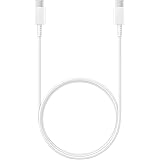
Samsung Original Type C to C Cable - 3.28 Feet (1 Meter), White
₹314.00 (as of October 27, 2026 17:07 GMT +05:30 - More infoProduct prices and availability are accurate as of the date/time indicated and are subject to change. Any price and availability information displayed on [relevant Amazon Site(s), as applicable] at the time of purchase will apply to the purchase of this product.)
Portronics Bridge Y USB 3.0 to Type C OTG Adaptor, 10Gbps High Speed Data Transfer, Thunderbolt to USB Adapter, Compatible for All Type C Devices, Smartphone, Laptops, Tablets, Chargers, MacBook
₹99.00 (as of October 27, 2026 17:07 GMT +05:30 - More infoProduct prices and availability are accurate as of the date/time indicated and are subject to change. Any price and availability information displayed on [relevant Amazon Site(s), as applicable] at the time of purchase will apply to the purchase of this product.)
Watch the original video: How To Delete Facebook Watch History | 100% Working
Disclosure: This post may contain affiliate links. If you buy through them, Informative Media may earn a small commission at no extra cost to you.
Quick Summary
- Find and delete individual videos from your Facebook watch history.
- Clear your entire Facebook watch history at once.
- Understand how to manage your watch history settings for better privacy.
- The process works across Android, iOS, and PC.
Amazon Finds
Recommended Products
Ever scrolled through Facebook Watch and ended up with a history you’d rather not have public? You’re not alone. Many users don’t realize how much video activity Facebook keeps track of. Thankfully, clearing this history is straightforward. We’ll show you exactly how to delete your Facebook watch history, whether you’re on your phone or computer.
This step-by-step guide is based on the latest Facebook app and website, ensuring you can manage your privacy effectively. You can remove specific videos or clear your entire watch log in just a few minutes.
Check out our latest video tutorial for a visual walkthrough: How To Delete Facebook Watch History | 100% Working.
Why Clear Your Facebook Watch History?
There are several good reasons to clean up your watch history:
- Privacy: Prevent others who access your account from seeing what videos you’ve watched.
- Recommendations: If Facebook’s video suggestions aren’t hitting the mark, clearing your history can reset them.
- Clean Slate: Simply want to start fresh and remove old, irrelevant viewing data.
How to Delete Facebook Watch History (Step-by-Step)
On the Facebook Mobile App (Android & iOS)
- Open the Facebook app and tap on the Menu icon (usually three horizontal lines or your profile picture) in the bottom right or top right corner.
- Scroll down and tap on Settings & Privacy, then select Settings.
- Under the ‘Your Facebook Information’ section, tap on Activity Log.
- In the Activity Log, find and tap on Interactions.
- Select Videos You’ve Watched.
- Here, you’ll see a list of videos you’ve watched. To delete individual videos, tap the three dots next to the video and select Delete.
- To clear all watch history, look for an option like ‘Clear All’ or similar. If this isn’t directly visible, you might need to delete them one by one, or Facebook may have updated the interface. The video linked above demonstrates the latest method.
On the Facebook Website (PC)
- Go to facebook.com and log in to your account.
- Click on your profile picture in the top right corner to go to your profile.
- On your profile page, click on the three dots (…) below your cover photo, then select Activity Log.
- In the left-hand menu, click on Interactions.
- Select Videos You’ve Watched.
- You’ll see your watch history. To remove a specific video, click the three dots next to it and choose Delete.
- To clear your entire watch history, look for a ‘Clear Watch History’ or ‘Clear All’ option, usually at the top of the list. If it’s not there, you may have to delete entries individually.
Pro Tips & Shortcuts
- Regular Cleanup: Make it a habit to clear your watch history periodically, especially if you use Facebook on public or shared devices.
- Privacy Settings: While clearing watch history is good, also review your overall Facebook privacy settings to control who sees your posts and information. For more on privacy, check out our guide on WhatsApp’s advanced privacy features, as similar principles apply to managing online data.
- App Updates: Facebook frequently updates its app. If you don’t see an option exactly as described, check for related terms like ‘History,’ ‘Activity,’ or ‘Watched Videos’ within the settings.
Common Mistakes to Avoid
- Confusing with Search History: Don’t confuse watch history with your Facebook search history. They are separate logs.
- Not Clearing All: If your goal is a complete reset, ensure you’ve cleared all entries, not just a few.
Frequently Asked Questions (FAQ)
Can I recover deleted Facebook watch history?
No, once you delete your Facebook watch history, it is permanently removed and cannot be recovered.
Does deleting watch history affect my video recommendations?
Yes, deleting your watch history can influence future video recommendations, as Facebook uses your viewing habits to suggest new content.
Is deleting watch history the same as clearing cache?
No, deleting watch history removes the record of videos you’ve viewed from Facebook’s servers. Clearing cache is a device-specific action that removes temporary files stored by the app or browser.
By following these steps, you can easily take control of your Facebook watch history and maintain better online privacy. If you found this helpful, consider sharing it with friends and don’t forget to subscribe for more tech tips!

Portronics iKonnect C Pro Type C to 3.5 mm Audio Jack Connector with DAC Headphone Converter Adapter Compatible with iPhone 15 Pro Max/15 Pro/15 Plus, Galaxy S23/S22/S21/S208 & Other Type C Phones
₹195.00 (as of October 27, 2026 17:07 GMT +05:30 - More infoProduct prices and availability are accurate as of the date/time indicated and are subject to change. Any price and availability information displayed on [relevant Amazon Site(s), as applicable] at the time of purchase will apply to the purchase of this product.)