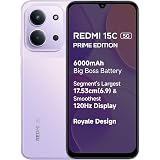
Redmi 15C 5G Prime Edition Dusk Purple 6GB + 128GB | Massive 6000mAh Battery | Segment's Largest 17.53cm Display Up to 120Hz | MediaTek Dimensity 6300 | 33W Fast Charging | 50MP AI Dual Camera
₹17,999.00 (as of October 27, 2026 17:07 GMT +05:30 - More infoProduct prices and availability are accurate as of the date/time indicated and are subject to change. Any price and availability information displayed on [relevant Amazon Site(s), as applicable] at the time of purchase will apply to the purchase of this product.)
Samsung Original 25W USB Type-C Travel Adaptor Without Cable for Google Pixel, Xiaomi, Motorola, iPhone, Samsung Galaxy Tab S/A Series, Galaxy S10/M54/M55/A80/A90/S25/S24, White
₹500.00 (as of October 27, 2026 17:07 GMT +05:30 - More infoProduct prices and availability are accurate as of the date/time indicated and are subject to change. Any price and availability information displayed on [relevant Amazon Site(s), as applicable] at the time of purchase will apply to the purchase of this product.)
Watch the original video: Remove your profile from suggestions/recommendations to others on Instagram
Disclosure: This post may contain affiliate links. If you buy through them, Informative Media may earn a small commission at no extra cost to you.
Quick Summary
- Discover the hidden Instagram setting to disable profile recommendations.
- Learn the specific steps to access this privacy control via the web version.
- Regain control over who sees your profile in their suggested accounts.
- Follow a simple four-step process to implement the change.
Amazon Finds
Recommended Products
Are You Tired of Instagram Suggesting Your Profile?
It happens to the best of us. You’re scrolling through Instagram, and suddenly, your profile is recommended to friends, family, or even people you barely know. If you prefer a more private experience and want to stop your account from appearing in others’ suggestion lists, you’re in the right place. This post will walk you through a simple but often overlooked setting that puts you back in control.
Check out the video tutorial for a visual guide on how to make this change: Remove your profile from suggestions/recommendations to others on Instagram.
Quick Answer: The Hidden Instagram Setting
Instagram has a specific setting designed to prevent your profile from being suggested to others. While it’s not immediately obvious within the mobile app, it’s accessible through the web version of Instagram. By disabling this feature, you can significantly reduce the chances of your account showing up in suggestion feeds.
Step-by-Step Guide to Disable Recommendations
Follow these straightforward steps to ensure your profile isn’t recommended to others:
- Access Instagram on the Web: Open a web browser on your computer or smartphone and go to the Instagram website (instagram.com). Log in to your account if you aren’t already.
- Navigate to Your Profile Settings: Once logged in, click on your profile picture in the top right corner, then select “Profile” from the dropdown menu. After that, click on the “Edit Profile” button.
- Find and Disable Recommendations: Scroll down within the “Edit Profile” section. You will find an option related to “Recommendations” or “Suggestions.” Toggle this setting OFF.
- Save Changes: Click the “Submit” or “Save” button to confirm your changes.
That’s it! After completing these steps, your Instagram profile should no longer be suggested to other users.
Pro Tips for Managing Your Instagram Presence
- Web Access is Key: Remember that this particular setting is currently only accessible via the Instagram website, not the mobile app.
- Privacy Check-up: Regularly review your privacy settings on all social media platforms. It’s a good habit to ensure your preferences are up-to-date. For other social media tips, consider checking out guides on managing contacts, like our post on how to save multiple WhatsApp contacts at once.
- Content Control: If you’re looking to boost your content creation skills, perhaps exploring tools like Canva with AI integration could be useful. Learn how to connect Canva to ChatGPT for image editing.
Common Mistakes to Avoid
- Only Checking the App: Many users only check their Instagram settings within the mobile app, missing this crucial web-based option.
- Forgetting to Save: Ensure you click the “Submit” or “Save” button after disabling the recommendation setting. Otherwise, your changes won’t take effect.
Frequently Asked Questions (FAQ)
- Will this setting stop all suggestions?
- This specific setting prevents your profile from being recommended to *other* users. It doesn’t stop Instagram from suggesting other accounts to you.
- How long does it take for the changes to apply?
- Typically, the changes should take effect immediately after saving. However, it might take a few hours for the system to fully update across all users.
- Can I re-enable suggestions later?
- Yes, you can easily re-enable the setting by following the same steps and toggling the option back ON.
By taking a few moments to adjust this setting, you can ensure your Instagram profile remains private and isn’t unnecessarily pushed onto others’ feeds.
Redmi 15C 5G Prime Edition Dusk Purple 6GB + 128GB | Massive 6000mAh Battery | Segment's Largest 17.53cm Display Up to 120Hz | MediaTek Dimensity 6300 | 33W Fast Charging | 50MP AI Dual Camera
₹17,999.00 (as of October 27, 2026 17:07 GMT +05:30 - More infoProduct prices and availability are accurate as of the date/time indicated and are subject to change. Any price and availability information displayed on [relevant Amazon Site(s), as applicable] at the time of purchase will apply to the purchase of this product.)