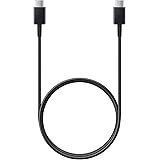
Samsung Original Type C to C Cable - 3.28 Feet (1 Meter), Black
₹304.00 (as of October 27, 2026 17:07 GMT +05:30 - More infoProduct prices and availability are accurate as of the date/time indicated and are subject to change. Any price and availability information displayed on [relevant Amazon Site(s), as applicable] at the time of purchase will apply to the purchase of this product.)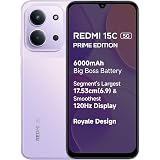
Redmi 15C 5G Prime Edition Dusk Purple 6GB + 128GB | Massive 6000mAh Battery | Segment's Largest 17.53cm Display Up to 120Hz | MediaTek Dimensity 6300 | 33W Fast Charging | 50MP AI Dual Camera
₹17,999.00 (as of October 27, 2026 17:07 GMT +05:30 - More infoProduct prices and availability are accurate as of the date/time indicated and are subject to change. Any price and availability information displayed on [relevant Amazon Site(s), as applicable] at the time of purchase will apply to the purchase of this product.)
Watch the original video: How To Use Canva in Chatgpt | How To Connect Canva to Chatgpt
Disclosure: This post may contain affiliate links. If you buy through them, Informative Media may earn a small commission at no extra cost to you.
Quick Summary
- Connect Canva to ChatGPT for precise image editing control.
- Solve the problem of AI changing entire images instead of specific parts.
- Follow simple steps in ChatGPT settings to enable the Canva plugin.
- Authorize ChatGPT to access your Canva account for seamless integration.
- Start creating and editing images with unprecedented ease.
Amazon Finds
Recommended Products
The Image Editing Dilemma with AI, Solved by Canva
You ask ChatGPT to tweak an image, and suddenly the whole picture changes. Sound familiar? For many of us, getting AI to make the *exact* edit we want on an image has been a frustrating point. The lack of granular control meant re-generating or starting over. But what if there was a way to bridge that gap and bring your design vision to life with precision?
The good news is, there is! By connecting the incredibly user-friendly design platform, Canva, directly with ChatGPT, you can regain that much-needed control. This integration allows you to produce editable images right within ChatGPT, transforming how you approach AI-generated visuals.
How to Connect Canva with ChatGPT: A Step-by-Step Guide
Getting these two powerful tools to work together is surprisingly straightforward. Here’s how you can set it up:
- Open ChatGPT Settings: Navigate to the settings menu within your ChatGPT interface.
- Go to Plugin Option: Look for the section dedicated to plugins or extensions.
- Select Canva: Browse the available plugins and choose the official Canva plugin.
- Login to Canva: You’ll be prompted to log in to your existing Canva account. If you don’t have one, you’ll need to create one first.
- Authorize ChatGPT: Grant ChatGPT permission to use your Canva account. This is a standard security step to ensure a safe connection.
And that’s it! You’ve successfully connected ChatGPT with Canva. Now you can generate and edit images with a level of control you likely haven’t experienced before with AI image generation.
Pro Tips for Using Canva in ChatGPT
- Be Specific with Prompts: Even with Canva’s editing power, clear prompts to ChatGPT will yield better starting points.
- Iterate Wisely: Use ChatGPT to generate initial concepts, then dive into Canva via the plugin for fine-tuning.
- Explore Canva Features: Familiarize yourself with Canva’s vast library of templates, elements, and effects. They are all accessible through the ChatGPT integration.
Common Mistakes to Avoid
- Not Logging In: Ensure you’re properly logged into your Canva account when prompted.
- Over-Reliance on AI for Complex Edits: While powerful, complex graphic design tasks might still be better handled directly in Canva’s full interface.
- Forgetting to Authorize: Double-check that you’ve given ChatGPT the necessary permissions to access your Canva account.
Frequently Asked Questions (FAQ)
Can I use the Canva plugin with the free version of ChatGPT?
Plugin availability often depends on your ChatGPT subscription. Typically, features like plugin access are more readily available to paid subscribers (e.g., ChatGPT Plus). You’ll need to check the latest requirements from OpenAI.
What kind of images can I edit using the Canva plugin in ChatGPT?
You can edit images generated by ChatGPT itself, or potentially upload and edit existing images if the plugin functionality supports it. The primary benefit is editing AI-generated visuals with Canva’s intuitive tools.
Will connecting Canva to ChatGPT affect my existing Canva designs?
No, connecting ChatGPT to Canva should not affect your existing designs within your Canva account. The integration is designed to allow ChatGPT to access and utilize Canva’s tools for image generation and editing prompts.
This integration is a game-changer for anyone looking to streamline their creative process. By combining ChatGPT’s conversational AI with Canva’s design capabilities, you can achieve stunning visual results with greater ease and control.
Looking for more ways to enhance your social media game or digital skills? Check out our other guides on mastering online tools and privacy:
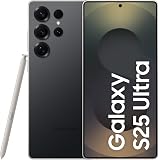
Samsung Galaxy S25 Ultra 5G AI Smartphone (Titanium Black, 12GB RAM, 256GB Storage), 200MP Camera, 5000mAh Ultra Long Battery, QHD+ Dynamic AMOLED 2X, Galaxy AI, Knox Security, S Pen Included
₹96,999.00 (as of October 27, 2026 17:07 GMT +05:30 - More infoProduct prices and availability are accurate as of the date/time indicated and are subject to change. Any price and availability information displayed on [relevant Amazon Site(s), as applicable] at the time of purchase will apply to the purchase of this product.)