
Portronics iKonnect C Pro Type C to 3.5 mm Audio Jack Connector with DAC Headphone Converter Adapter Compatible with iPhone 15 Pro Max/15 Pro/15 Plus, Galaxy S23/S22/S21/S208 & Other Type C Phones
₹195.00 (as of October 27, 2026 17:07 GMT +05:30 - More infoProduct prices and availability are accurate as of the date/time indicated and are subject to change. Any price and availability information displayed on [relevant Amazon Site(s), as applicable] at the time of purchase will apply to the purchase of this product.)
Portronics Luxcell B 20K Advanced 20000 mAh Power Bank with 22.5W Max Output, LED Battery Display, 22.5w Mach USB-A, 20w Type C PD Output, Type C Input, Wake Up Button, Black
Now retrieving the price.
(as of October 27, 2026 17:07 GMT +05:30 - More infoProduct prices and availability are accurate as of the date/time indicated and are subject to change. Any price and availability information displayed on [relevant Amazon Site(s), as applicable] at the time of purchase will apply to the purchase of this product.)
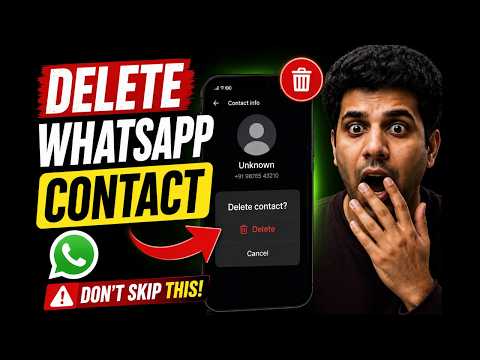
Watch the original video: How to Delete Whatsapp Contact
Disclosure: This post may contain affiliate links. If you buy through them, Informative Media may earn a small commission at no extra cost to you.
Quick Summary
- Deleting a WhatsApp contact requires removing them from your phone’s main address book first.
- The process differs slightly between Android and iPhone.
- If a contact persists on WhatsApp, refresh your contact list or restart the app.
- Understand the difference between blocking and deleting a contact.
- Chat history remains even after deleting a contact, unless you delete the chat itself.
Amazon Finds
Recommended Products
How to Delete a WhatsApp Contact: A Step-by-Step Guide
Ever found yourself stuck trying to remove a contact from WhatsApp, only to realize the delete button isn’t where you expect it? You’re not alone. Many users assume the option is directly within the WhatsApp app, but the reality is a bit different, as highlighted in this informative video tutorial: How to Delete Whatsapp Contact. Let’s break down the easy steps for both Android and iPhone users to clean up their WhatsApp contact list.
Why Can’t I Just Delete on WhatsApp?
WhatsApp syncs with your phone’s native address book. This means to truly remove someone from WhatsApp, you first need to delete them from your phone’s contacts. This is a security and privacy feature, ensuring your contact list management is tied to your device’s core functions.
Deleting Contacts on Android
For Android users, the process is straightforward:
- Open WhatsApp and navigate to the chat with the contact you wish to remove.
- Tap on the contact’s name at the top of the chat screen.
- Select the option “View in address book.” This will take you to your phone’s contacts app.
- From your phone’s contacts app, find the delete option for that specific contact and confirm.
- Go back to WhatsApp. You might need to refresh your contact list for the changes to take effect (often done by going to the Chats tab, tapping the new chat icon, and then pulling down on the contacts list).
Deleting Contacts on iPhone
iPhone users follow a similar, yet slightly different, path:
- Open WhatsApp and go to the chat of the contact you want to delete.
- Tap on the contact’s name at the top.
- Select the “Edit” option, usually found in the top right corner.
- Scroll down and tap “Delete Contact.” Confirm your choice.
- The contact should be removed from WhatsApp automatically. If not, try refreshing your contact list within WhatsApp.
Troubleshooting: Contact Still Showing on WhatsApp?
If you’ve deleted a contact from your phone but they’re still visible in WhatsApp, don’t panic. This usually happens due to a sync delay. Try these quick fixes:
- Refresh Contact List: In WhatsApp, go to the main Chats screen, tap the ‘New Chat’ icon, and then pull down on the contacts list to refresh.
- Restart WhatsApp: Close the app completely and reopen it.
- Restart Your Phone: A full device restart can often resolve syncing issues.
Block vs. Delete: What’s the Difference?
It’s important to understand the distinction:
- Deleting a Contact: Removes the contact from your phone’s address book and subsequently from WhatsApp. Their chat history remains on your device unless you delete the chat itself.
- Blocking a Contact: Prevents the user from messaging you, seeing your status updates, or calling you on WhatsApp. They will remain in your contact list, but communication is severed. Blocking is often a better first step if you’re receiving unwanted messages.
Handling Unknown Numbers
For unknown numbers contacting you on WhatsApp, blocking is generally the most effective method if you don’t wish to engage. You can initiate this directly from the chat window.
Frequently Asked Questions (FAQ)
Does deleting a WhatsApp contact delete the chat history?
No, deleting a contact from your phone’s address book and WhatsApp does not automatically delete the chat history. You will need to manually delete the chat conversation if you want to remove it entirely.
Can I delete a contact directly from WhatsApp?
No, you cannot delete a contact directly within the WhatsApp application. The process involves deleting the contact from your phone’s main address book first.
What happens if I delete a contact that is not saved in my phone?
If a contact is only present on WhatsApp and not saved in your phone’s address book, you can usually block them directly from the chat. To fully ‘delete’ them, you’d need to ensure they aren’t in your phone’s contacts and then potentially clear the chat.
Managing your contacts can sometimes feel like a chore, but with these simple steps, you can easily keep your WhatsApp list tidy. Whether you’re trying to remove an old connection or simply declutter your chats, the process is now clear.
If you found this guide helpful, give it a like! Still facing issues? Drop a comment below, and don’t forget to subscribe for more useful WhatsApp tips and tech updates.

Ambrane Multipurpose Tabletop Mobile Stand | Adjustable Angle & Height| Universal Holder for iPhone, Samsung, OnePlus & All Smartphones | Portable, Anti-Skid | for Home, Office, Bed & Gifting (Black)
₹149.00 (as of October 27, 2026 17:07 GMT +05:30 - More infoProduct prices and availability are accurate as of the date/time indicated and are subject to change. Any price and availability information displayed on [relevant Amazon Site(s), as applicable] at the time of purchase will apply to the purchase of this product.)